Start with EdrawMind Mobile Guide
User Guide for Mobile
-
Start
-
Topic
-
Examples
-
Customize
-
Insert
-
Templates
-
AI
-
File Operation
-
Poster
One way of customizing a mind map is by changing the individual node shapes and colors. This allows for more creative freedom than preset themes or styles. You can mix and match the appearance of each branch or topic line in EdrawMind mobile.
Here’s how:
Step 01
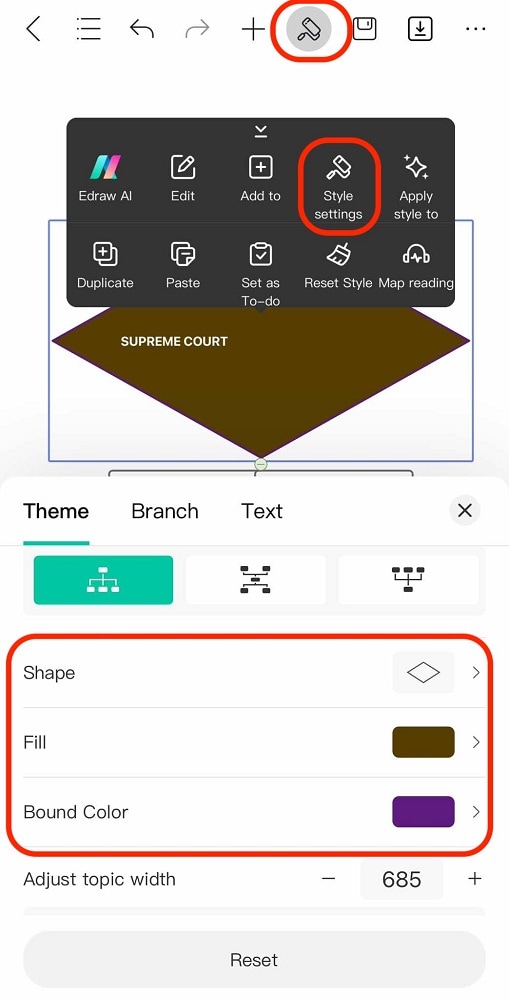
Select a node. Then, tap the Customize icon from the top toolbar. Alternatively, select Style Settings from the appearing toolbar.
Step 02
Under the Theme tab, you can go to the following menus to change the appearance of the node:
- Shape. Changes the shape of the node itself.
- Fill. Changes the color fill of the node.
- Bound Color. Changes the color of the outline around the node.