What Can an Ideal Collaborative Mind-Mapping Tool Do?
An ideal collaborative mind-mapping tool can render your shared mind-mapping experience enjoyable and more productive.
If you live distant from your team members and can't approach them physically, an excellent state-of-the-art collaborative mind-mapping tool is all you need.
A properly chosen mindmap tool can fulfill your teamwork requirements and save valuable time & effort.
These can also help you manage workload efficiently and track progress. The incredible benefits of online collaborative mind map tools have compelled us to present top-notch market tools to you.

In This Article
What Is Collaborative Mind Mapping and Why Use It?
Collaborative mind mapping is a productive activity in which team members communicate, express, & disseminate ideas, visualizing them in a mindmap form. This technique helps members connect and sparks their creativity.
Specifically, here are the reasons why you should use collaborative mind-mapping tools:
Generation of New Ideas
The collaborative mind-mapping approach is beneficial because it enables teammates to express their opinions about a particular idea, generating new ideas. Each team member can deliver a proposition that others may be unaware of.
Hence, mind mapping on a team level can enhance your knowledge about a particular subject or area.
Well-Coordinated Team Environment
Each team member involved in the collaborative mind-mapping process imparts their suggestions about the topic, which fosters a well-coordinated and interactive work environment. Mind mapping is centered on creativity.
Thus, each teammate is empowered to unleash their innovative abilities via productive group discussions and information exchange. You can also divide team members by assigning them different roles, such as designers, task managers, monitors, and decision-makers.
Improved Problem-Solving
When you have little knowledge about a specific topic, your problem-solving skills may be handicapped. Group discussions encourage every member to participate equally in idea sharing.
This fosters a productive atmosphere, facilitating the understanding & solving of a problem efficiently. Similarly, collaboration can be super effective when solving problems because you can see all the colleagues' proposed solutions, suggestions, and recommendations.
Encouraging Creativity
Teamwork encourages each teammate to engage in the thinking process, leading to impressive idea presentations through spellbinding mindmaps. Additionally, the whole team endeavors to deliver maximized output by participating optimally in the mutual task.
Additionally, group discussions allow each member to participate, developing a sense of confidence & inclusion in members to speak up and spark innovation.
Educated Decision-Making
Decision-making is a formidable task in teamwork that can be efficiently managed through active involvement in group activities and proposing personal suggestions.
Discussions are a pivotal route to improved decision-making because of maximum collaboration and sharing of individual ideas. Collaborative mind-mapping can result in informed decision-making due to members' active involvement, elevated interest level, and enhanced team spirit. The more efficient the discussions, the more prolific the decision would be.
Top 10 Collaborative Mind-Mapping Tools
Regardless of where you reside or which device you use, these collaborative mind-mapping tools are astonishingly satisfactory and will cater to your collaborative teamwork needs. Keep reading to unveil the top-trending platforms ideal for collaborative mind mapping.
EdrawMind Online
Wondershare EdrawMind Online is a consummate solution for sketching multipurpose collaborative mindmaps, providing all-in-one features for real-time collaboration, like a Swiss army knife.
Using EdrawMind Online, you can initiate & develop your digital-driven workspace and fabricate stunning mindmaps for your team-based or organizational needs. Moreover, your files are synced to ensure each member receives the most updated file version.
 Try the app & get 500 free AI tokens


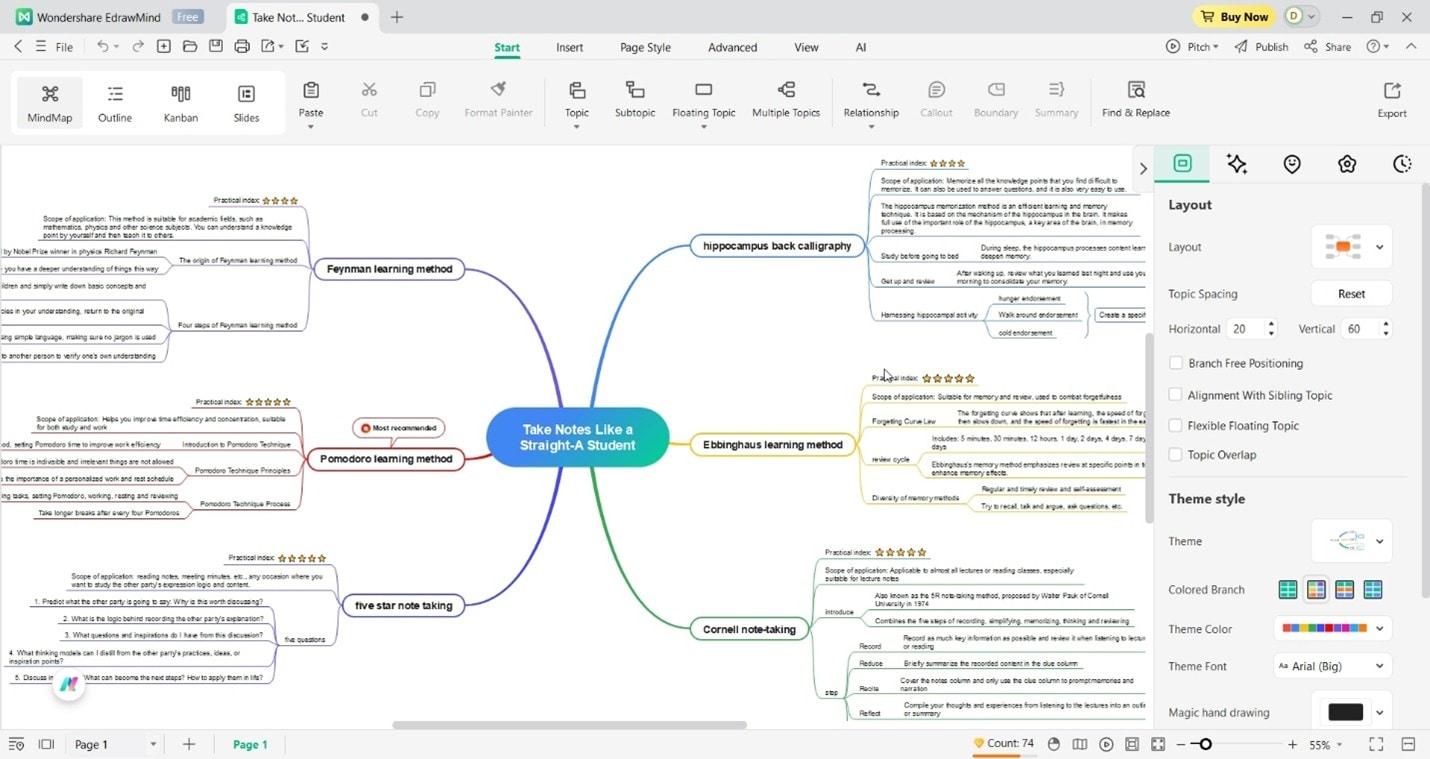
EdrawMind Online’s Key Features
Notably, here are some of EdrawMind’s key features:
- Real-Time Collaboration: EdrawMind Online enables you to collaborate with your teammates using the real-time collaboration feature for a streamlined workflow and efficient resource Management.
- History Version: You can view and access the previous version of your files by navigating to the History Version.
- Built-in AI tools: Your team can enjoy a host of AI features like AI copywriting, chatbots, diagram generators, and more.
- Outline Mode: If you are perplexed by the non-rectilinear layout of Mindmap Mode, you can switch to Outline Mode for easy editing.
- Templates Gallery: EdrawMind Online provides an appealing gallery of templates, providing professional projects that you can employ as a framework to initiate your mind map.
- Multiple Page Creation: You can create multiple pages within a single file to avoid switching between different canvases.
- Background Customization: If you're tired of the outdated monochromatic background, EdrawMind Online lets you customize your canvas with appealing colors, gradients, textures, and images.
- Integrations: EdrawMind Online integrates with various external workspaces to facilitate your mind mapping regime, including Dropbox, Pexels, and OneDrive.
- View Navigation: EdrawMind Online allows you to focus on a particular area of your mind map by enabling View Navigation.
How To Use EdrawMind for Collaboration
Interested in EdrawMind? Here are some of the steps you should follow to initiate real-time collaboration:
Step 1
Sign up to create an EdrawMind Online account to use it for collaborative mind-mapping.
Step 2
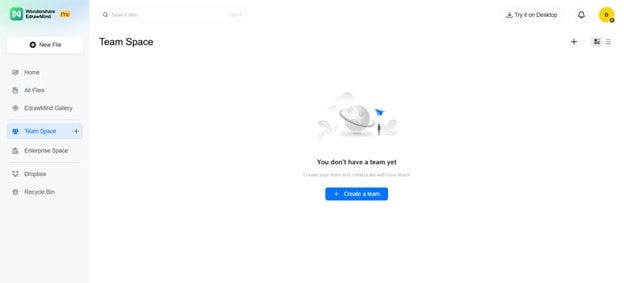
When EdrawMind Online's main interface launches, click the Teamspace option on the left panel.

Step 3
On this page, click on + Create a Team. On the pop-up page, type in your team name.
Step 4
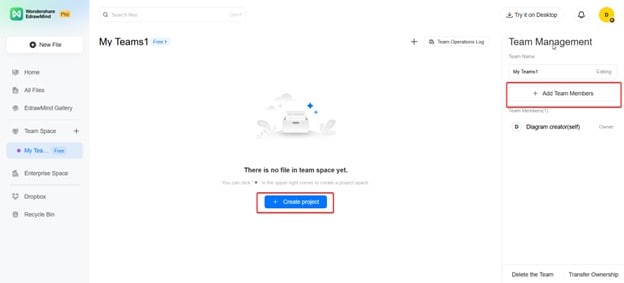
There are two things you can do here:
- Add Team Members. Invite your team members via email so they can join the team space.
- Create Project. This allows you to make your first mind map with the people you invite.
MindMeister
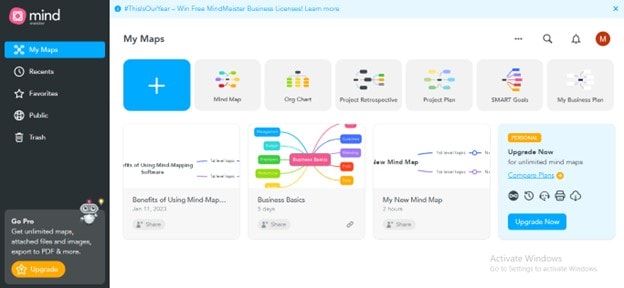
MindMeister, another reliable platform for collaborative mind-mapping, imparts all imperative features to empower members to congregate at a shared place & propagate their ideas. You can add comments, assign tasks to teammates, invite members via links, and more using MindMeister.
MindMeister’s Key Features
Here are some of MindMeister’s key features related to collaboration:
- Link Sharing: You can invite multiple members to edit or view your mindmap via a secure link. Additionally, MindMeister allows you to Bulk Invite members by creating a group and sharing a single link.
- Ideas Voting: MindMeister enables ideas voting to know the majority's point of view about a particular idea. You can even create polls for idea voting to check members' reactions.
- MeisterTask Integration: With MeisterTask, you can assign tasks easily and remind your teammates as they work through the mind maps. This way, you can also monitor their progress.
- AI Assistance: Your whole team can enjoy MindMeister’s suite of AI features like AI idea generation, keyword summaries, and auto-structuring, which benefit mind map collaboration.
How To Use MindMeister for Collaboration
Here are the steps you can follow to begin collaborating within MindMeister:
Step 1
Sign up for MindMeister to create an account for collaborative mind mapping.
Step 2
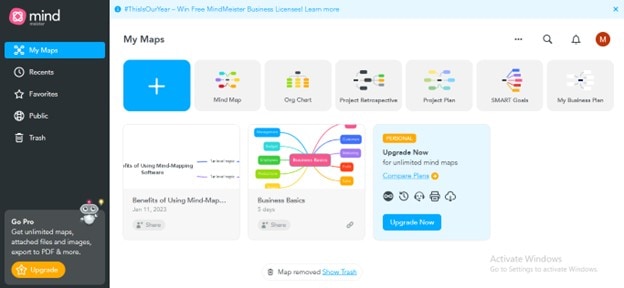
Click the Mind Map tab to initiate your mind map.
Step 3
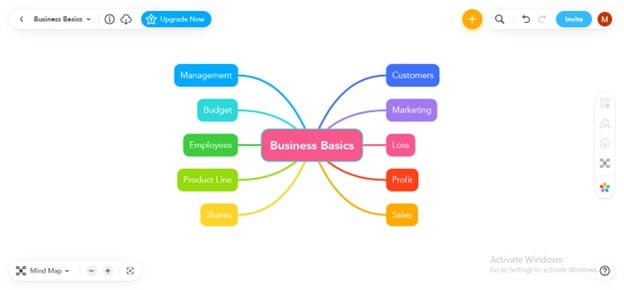
Click the Invite button at the top right to allow others to collaborate with your mind map.
Step 4
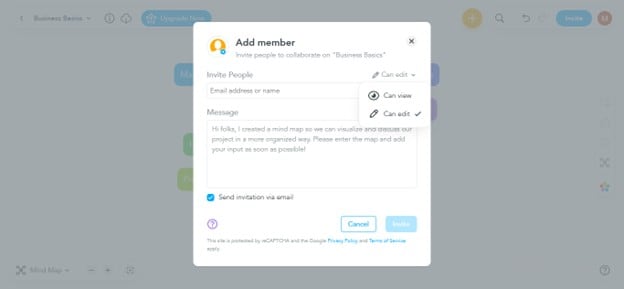
Enter the invitee's email address and click the Invite button. You can also set your member's status as the viewer or editor.
Ayoa
Ayoa maximizes team productivity by presenting state-of-the-art collaboration features to connect and communicate with your team members. Using Ayoa's collaborative toolkit, you can arrange online meetings, brainstorm ideas, schedule tasks, set project deadlines, track others' progress, and share instant feedback.
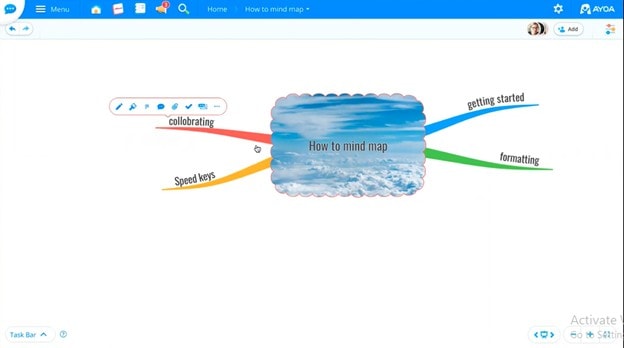
Ayoa’s Key Features
Here are some of Ayoa’s key features:
- Instant Feedback: Team members can provide instant feedback on a particular idea, encouraging their participation. Moreover, Ayoa tracks the individual progress of each member, keeping an eye on who is doing what.
- Real-Time Messaging: You can receive instant responses to your queries via real-time messages or group chats, saving valuable time.
- My Planner: To keep your tasks organized in one place, you can use the My Planner feature. Ayoa will organize all your completed, pending, and scheduled tasks, even if scattered on multiple taskboards.
- Multiple Work Views: Your team can also enjoy different work views, such as whiteboards for freeform brainstorming, task boards, Gantt timelines, and document views.
How To Use Ayoa for Collaboration
Here are some steps you can follow:
Step 1
Create an Ayoa account by signing up for its 7-day free trial. You can also subscribe to its premium plans if required.
Step 2
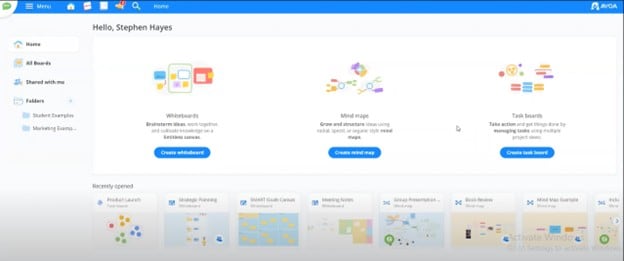
Click the Create Mind Map button to create your collaborative mind map.
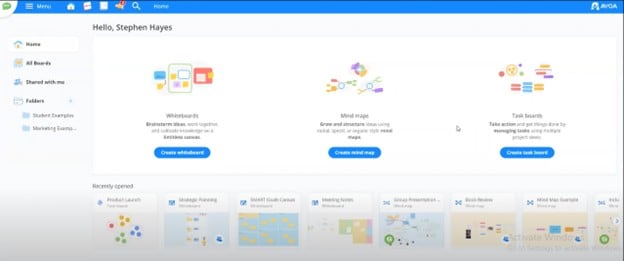
Step 3
Click the Share button at the top right to invite other members for collaboration. You can enter the invitee's email address or invite them via the link.
GitMind
If you want to establish a productive workspace remotely while sitting in your house, consider using GitMind. With massive collaboration features, GitMind stands out as one of the eminent collaborative mindmap creation platforms. GitMind makes it pretty straightforward to invite your associates to manage team tasks.

GitMind’s Key Features
Here are some of the key features of GitMind related to real-time collaboration:
- Mindmap Sharing: Using GitMind, you can share your mindmaps with others using link-sharing. You can also allow others to collaborate with your project.
- Commenting: GitMind allows you to add comments about a particular idea; each member can view and read that comment. Instant comments allow effective workflow, sparing precious time.
- Setting Members' Status: You can set the members' status as viewers or editors, taking control of who can do what and how much.
- Cross-Platform and Cloud Sync: The great thing about GitMind is that your team members can join you from the web, on a Windows PC, Mac, or mobile device.
How To Use GitMind for Collaboration
Some steps to follow when using GitMind’s collaboration features are below:
Step 1
Sign up for a GitMind account to use it for real-time mindmap collaboration.
Step 2
Click the New option from the left panel and click the New Map button to start a new mindmap.
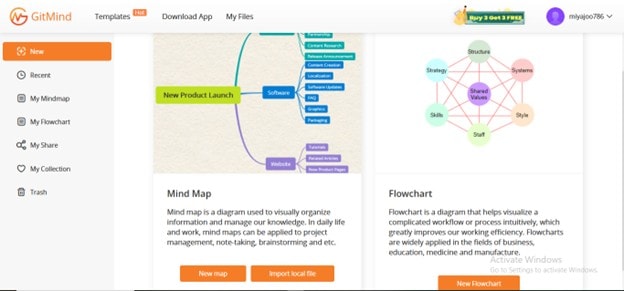
Step 3
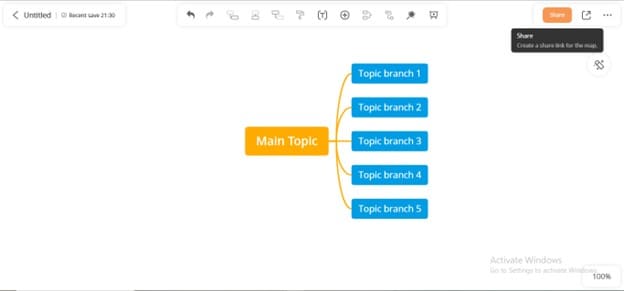
Click the Share button to invite others to collaborate with your mind map.
Step 4
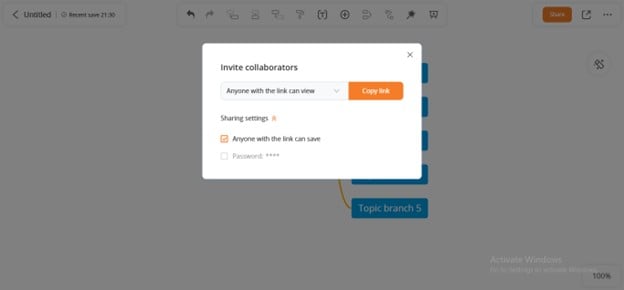
Set the collaborator's status and click the Copy Link button to copy & share the file link.
ClickUp
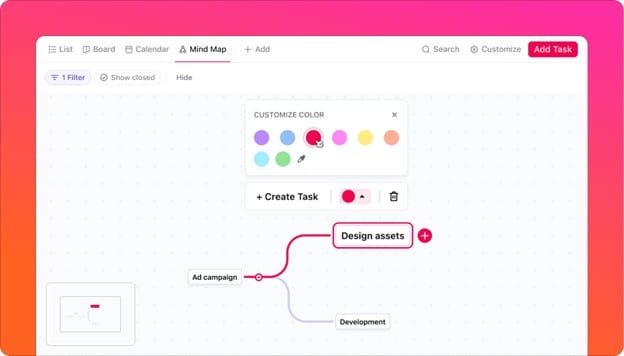
ClickUp is “the everything app for work.” It’s also designed for mind mapping and project management. It gives teams a shared space to brainstorm, organize, and act on ideas without switching between tools. You can design mind maps, assign tasks straight from your branches, leave comments, and connect brainstorming sessions directly with project workflows.
ClickUp’s Key Features
Here are some features that make ClickUp useful for collaboration:
- Mind Map to Task Conversion: Turn branches of your mind map into tasks that can be tracked and managed. This helps ideas move smoothly from planning to execution.
- Real-Time Collaboration: Work with teammates on the same mind map at once. Everyone sees updates instantly, making teamwork easier and faster.
- Integrated Project Views: Connect your mind maps to other views like Kanban boards, calendars, or timelines. This makes it simple to track projects from different angles.
- AI Assistance: Use AI to brainstorm ideas, condense lengthy sections, or identify priorities. It saves time and helps teams stay focused on key goals.
How To Use ClickUp for Collaboration
To start using ClickUp for collaboration, follow the steps:
Step 1
First, sign up for a ClickUp account. It will ask you to answer some questions related to your team.
Step 2
Once your space is ready, go to the Team Space > Share, then type in the email accounts of your team members. This will allow them to access your space.
Step 3
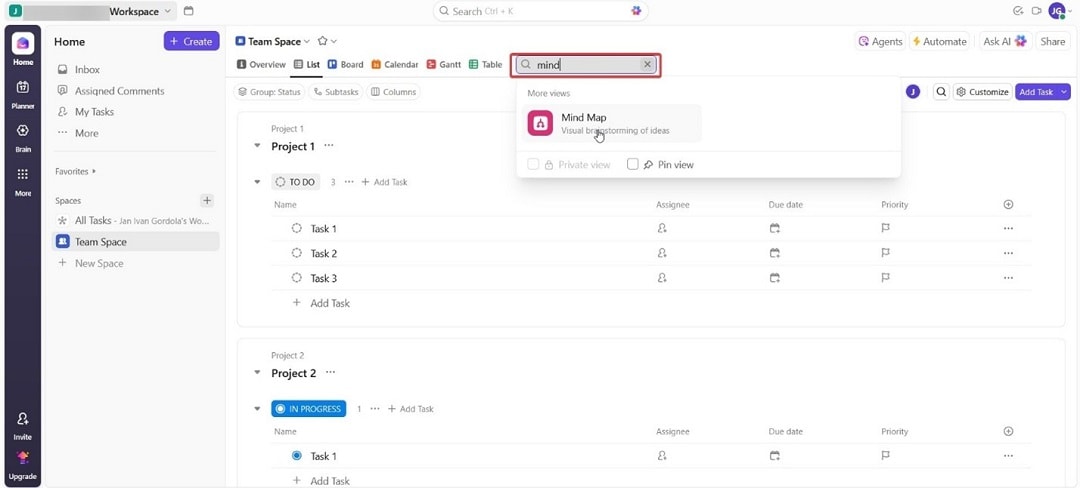
To access mind mapping, go to the search bar and search for “mind map.”

XMind
Xmind, a cross‑platform mind mapping and brainstorming tool, offers a clean, distraction‑free interface with powerful features for individual and team use. It supports multiple diagram types and integrates with popular productivity tools. In addition, it works seamlessly across devices, making it a versatile choice for professionals who need both creativity and structure in their workflows.

XMind’s Key Features
Here are some of Xmind’s key features related to collaboration and productivity:
- Multiple Diagram Types: Create mind maps, logic charts, org charts, timelines, and fishbone diagrams in the same workspace.
- Real-Time Collaboration: Invite team members to co-edit maps live, with instant syncing across devices.
- Cross-Platform Access: Available on Windows, macOS, Linux, iOS, Android, and Web, with cloud sync for seamless transitions.
- AI Assistance: Generate topic suggestions, auto-structure maps, and summarize complex branches.
How To Use XMind for Collaboration
Here are the steps to use Xmind for collaboration:
Step 1
Access the Xmind website and sign in with an account.
Step 2
Then, make a mind map from Create New or through the free templates.
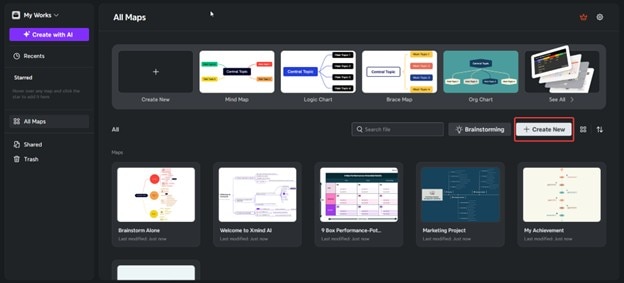
Step 3
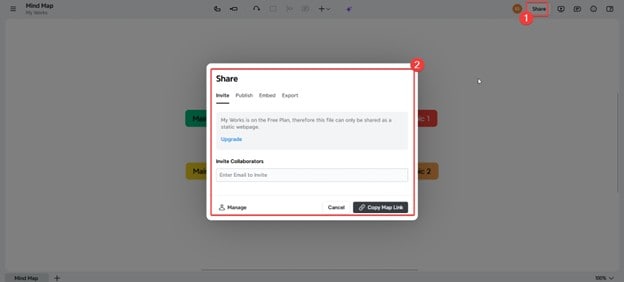
Then, from the mind map interface, choose the Share button and invite your collaborators.
Miro
Miro is an innovative platform for real-time collaboration, providing users with state-of-the-art collaboration features to foster team productivity. It is a complete toolset for online meetings, workshops, & group discussions. Miro imparts mouseover collaboration, screen sharing, controlled discussion sessions, embedded video chats, and comments.
Miro’s Key Features
Here are some of Miro’s key features:
- Remote Scrums: You can eliminate hours of traditional documentation and engage your remote members using Miro's Remote daily scrums, comparing your past performance side-by-side.
- Meetings & Workshops: Miro provides a seamless meeting experience to each member, encouraging them to express their viewpoints. You can conduct various sessions, including controlled discussions, feedback sessions, and design sessions, to create a streamlined work environment.
- Workspace Integrations: Miro integrates with MS Teams, Zoom, Slack, Webex, Dropbox, Google Drive, etc., to enhance its user experience, security, and import & export choices.
How To Use Miro for Collaboration
Here are some steps you can follow to use Miro’s collaboration features:
Step 1
Create a Miro account by signing up to utilize it for making collaboration-inspired mindmaps.
Step 2
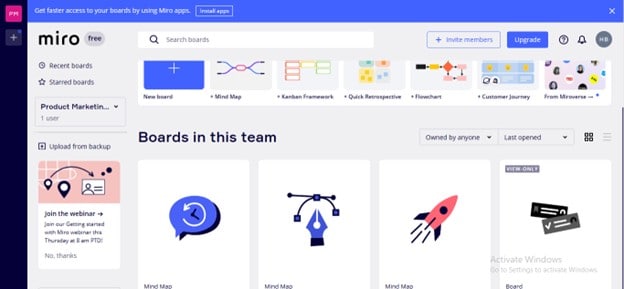
Click the Mind Map option from the main interface to get started with your mind map.

Step 3
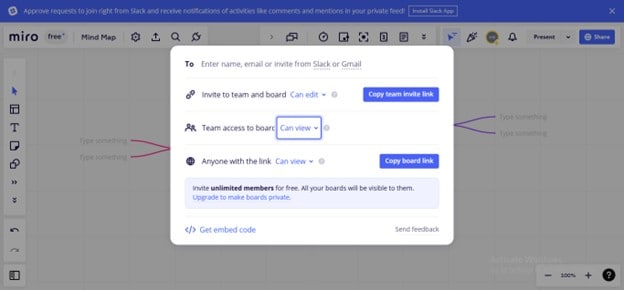
Click the Share button to invite people to collaborate with your map.

Step 4
Enter the name or email address of the member you want to invite. You can also copy the board link and send it to people to join the mindmap for collaboration.
Visio
Visio, a commendable service from Microsoft, had already made its mark in the industry because of its cross-platform compatibility, user-friendly interface, external integrations, and online collaboration. You can manage workflow effectively on Visio through meetings, workshops, group discussions, updates syncing, and real-time chatting.

Visio’s Key Features
Some of Visio’s key features related to collaboration are:
- Adding Comments & Feedback: Members can comment on a particular idea, shape, activity, or modification to exchange views. You can also conduct a feedback session to collect the viewpoints of all members.
- Video Calling & Chatting: You can connect with your team members via video call or real-time chat to discuss ideas for more clarity.
- Integrations: Visio integrates with other Microsoft products, including Word, Excel, Teams, PowerPoint, Outlook, Azure, and others, to ensure a smooth workflow and efficient workload management.
How To Use Visio for Collaboration
Here are the steps to initiate collaboration within Visio:
Step 1
Create a Microsoft account to access Visio for shared mind-mapping.
Step 2
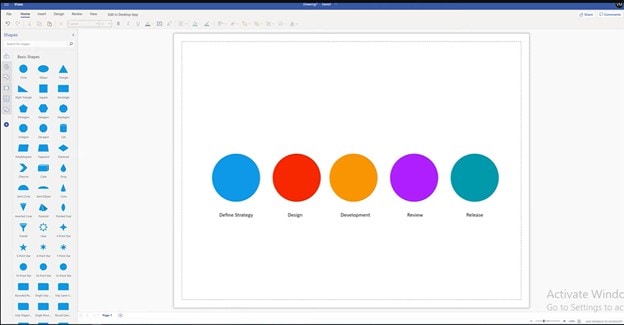
Visio's main interface will launch; start creating your diagram.
Step 3
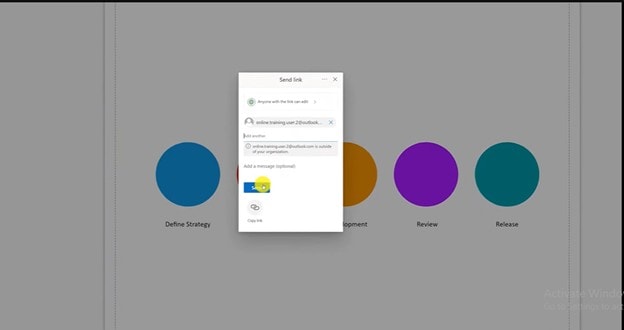
To invite others to collaborate, click the Share button in the top right corner.
Step 4
Enter the email address of the person you want to invite, or send them the link to collaborate with your map, and click the Send button.
LucidSpark
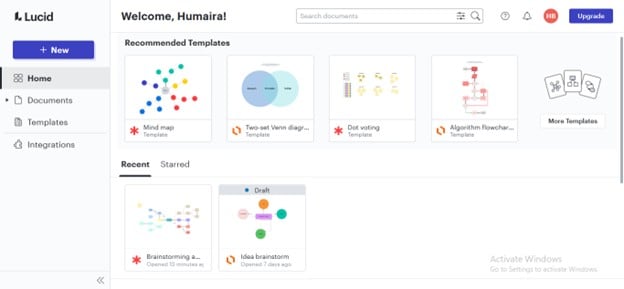
If you are looking for a full-featured digital whiteboard that also serves as a mindmap canvas, there's no better option than LucidSpark. Using its extensive features toolkit, you can ideate, sketch, communicate, and provide feedback. Additionally, LucidSpark lets you commence your collaborative mind-mapping journey through exciting templates.
LucidSpark’s Key Features
Here is a list of LucidSpark’s key features:
- Individual Contribution Display: Each member's contribution is color-coded to track individual changes. Members can also use the colored dot voting option to suggest an idea.
- Agile Project Planning: LucidSpark enables you to turn your ideas into actionable plans by converting them into timelines, Kanban boards, Gantt charts, or retrospectives.
- Cross-Platform: In addition, cross-collaboration is available with LucidSpark. You can access the collaboration features from the web app for desktop PCs or the mobile app.
- Seamless Integrations: Connect with Slack, Microsoft Teams, Zoom, Jira, Confluence, Google Drive, and Lucidchart. This makes it easy to work around the standard tools that your company uses.
How To Use LucidSpark for Collaboration
Next, here are the steps to use LucidSpark for collaboration:
Step 1
Sign up for LucidSpark to use its canvas for collaborative mind-mapping.
Step 2
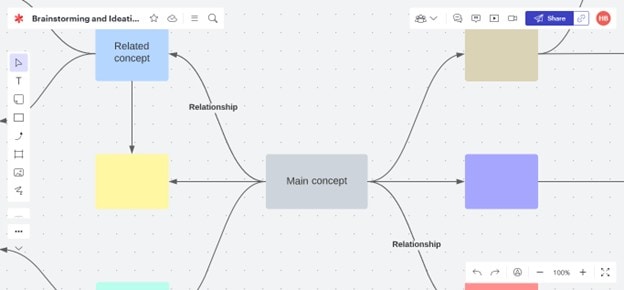
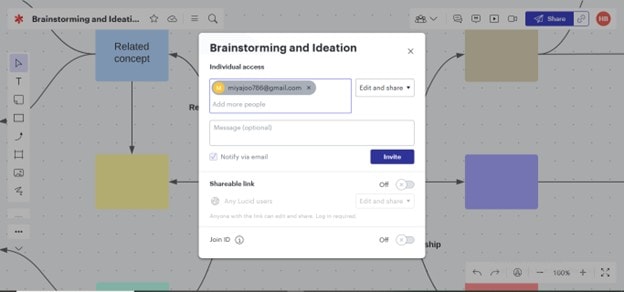
The canvas window will launch, showing different options. Click the Share button to share your mindmap with people for collaboration.
Step 3
Enter the name, group name, or email address of the invitee, and click the Invite button. You can also share your current window via Join ID.
MindManager
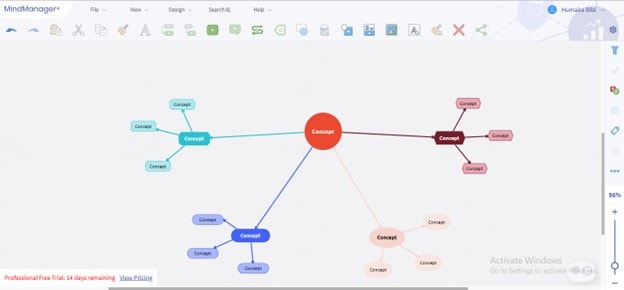
Lastly, you can take your collaborative mind-mapping experience to the next level via MindManager because of its infinite canvas, spellbinding templates, and ample integrations. MindManager is a complete package, providing features for business planning, project management, project decision-making, problem-solving, creative crafting, and knowledge management.
MindManager’s Key Features
Here are the key features of MindManager:
- Project Management: MindManager enables effective task management through several key features, including detailed sub-projects, intuitive project arrangement, and Gantt chart creation.
- Useful Work Integrations: MindManager provides instrumental work integrations with MS Project, Outlook, SharePoint, and Excel, to facilitate file import, synchronization, & collaboration.
- Multiple Diagram Types: In addition to these features, MindManager offers a range of project collaboration diagrams, including Gantt Charts, flowcharts, org charts, and more.
- Real-Time Collaboration: MindManager offers real-time collaboration, enabling you to edit mind maps and charts live with your teammates.
How To Use MindManager for Collaboration
Then, here are the steps to use the tool for collaboration:
Step 1
Sign up to create a MindManager account to use it for online mindmap collaboration.
Step 2
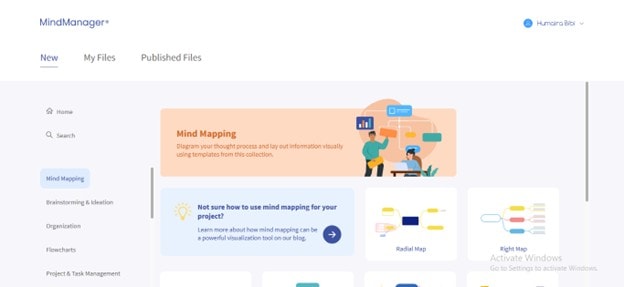
Choose the Mind Mapping option from the left panel, and start with any template you like.
Step 3
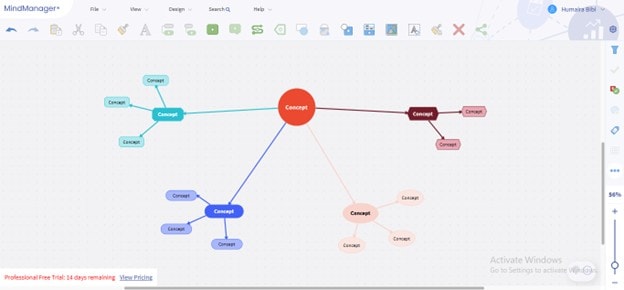
Click the Share Icon to invite others via the link to collaborate.
Comparison Chart of the Best 10 Collaborative Mind-Mapping Tools
If you want a quicker overview, here’s a head-to-head comparison that clarifies most doubts. Thus, this article has collated all the above-discussed professional collaborative mindmap tools based on the parameters you will usually need in a collaborative mind mapping tool.
| Tool | Real-time collaboration | Team Management | Cloud Storage | Rich Text Format | Formatting tools | Outline | Mind Mapping Community | History |
|---|---|---|---|---|---|---|---|---|
| EdrawMind | ✅ | ✅ | ✅ | ✅ | ✅ | ✅ | ✅ | ✅ |
| MindMeister | ✅ | ✅ | ✅ | ✅ | ✅ | ❌ | ✅ | ✅ |
| Ayoa | ✅ | ✅ | ✅ | ✅ | ✅ | ❌ | ✅ | ✅ |
| GitMind | ✅ | ✅ | ✅ | ✅ | ✅ | ❌ | ✅ | ✅ |
| ClickUp | ✅ | ✅ | ✅ | ✅ | ✅ | ❌ | ✅ | ✅ |
| Xmind | ✅ | ❌ | ✅ | ✅ | ✅ | ✅ | ✅ | ✅ |
| Miro | ✅ | ✅ | ✅ | ✅ | ✅ | ❌ | ✅ | ✅ |
| Visio | ✅ | ✅ | ✅ | ✅ | ✅ | ❌ | ✅ | ✅ |
| LucidSpark | ✅ | ✅ | ✅ | ✅ | ✅ | ❌ | ✅ | ✅ |
| MindManager | ✅ | ✅ | ✅ | ✅ | ✅ | ✅ | ✅ | ✅ |
Conclusion
An online mindmap collaboration tool is inevitable for tailoring your map remotely, especially when working on a team task. The above description of the tools will suffice for making an informed decision about your ideal collaborative tool.
Given this context, this article evaluated ten trend-setting collaborative mind map tools, including their features and operational procedures. If you're looking for something reliable, consider trying out EdrawMind. It won’t fail you.
FAQs
Here are some frequently asked questions related to collaborative mind mapping tools:
-
1. What are collaborative mind mapping tools?
Collaborative mind-mapping tools are designed to manage teamwork, particularly in mind-mapping, and facilitate efficient workload management. -
2. What are the benefits of using collaborative mind mapping tools?
Collaborative mind-mapping tools facilitate group brainstorming, idea generation, and a productive work environment, ultimately leading to improved decision-making and problem-solving. -
3. Do the collaboration mind mapping tools provide online versions?
Yes. Most mindmapping collaborative tools offer their online version in addition to their applications. Only a few do not provide their online versions.
 EdrawMind
AppsEdrawMind Online
EdrawMind
AppsEdrawMind Online