


Many plans fail because people can't see how their strengths align with real market opportunities. I've watched brilliant ideas fade simply because teams never made those links.
SWOT analysis shows what's strong, what's weak, and where the risks and opportunities lie. Mind mapping builds on that by linking everything visually.
In this article, I’ll explain how creating a SWOT analysis map of that kind takes only minutes with EdrawMind.
In this article
How to Do a SWOT Analysis on EdrawMind
EdrawMind supports different methods for building a SWOT analysis mind map. You can select the approach that aligns with your project timeline.
Method 1: Using AI for Instant SWOT Analysis
If you want quick, structured insights, AI can create a complete SWOT framework in seconds. I prefer this method as it saves me a great deal of time.
 Try the app & get 500 free AI tokens


Step1 Start with Edraw.AI
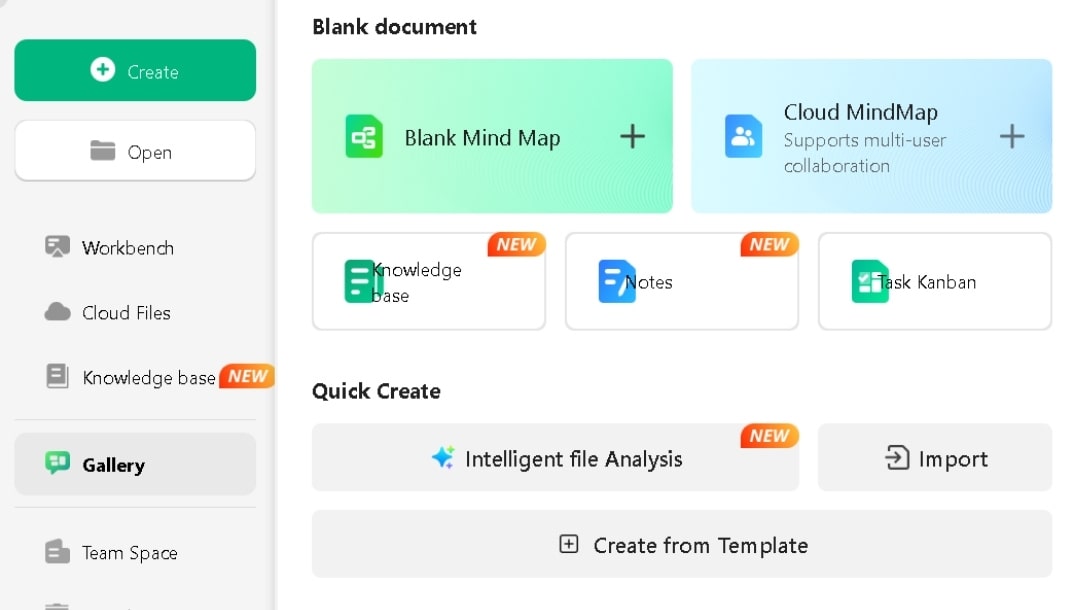
Start EdrawMind and click + Create > Blank Mind Map.
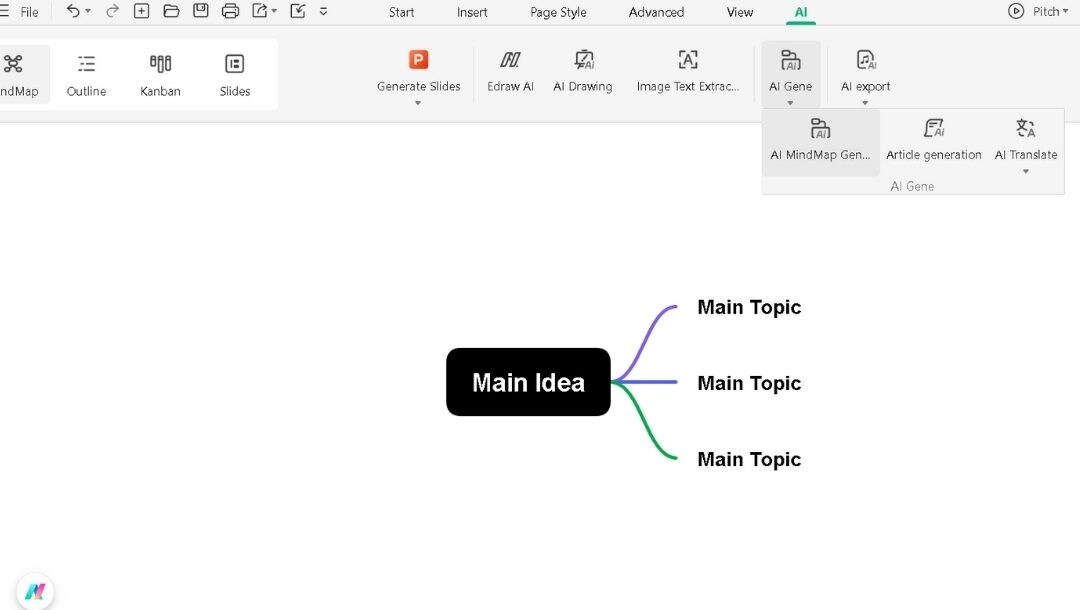
Go to the AI tab from the top toolbar menu.
Select AI Gene > AI MindMap Generation.
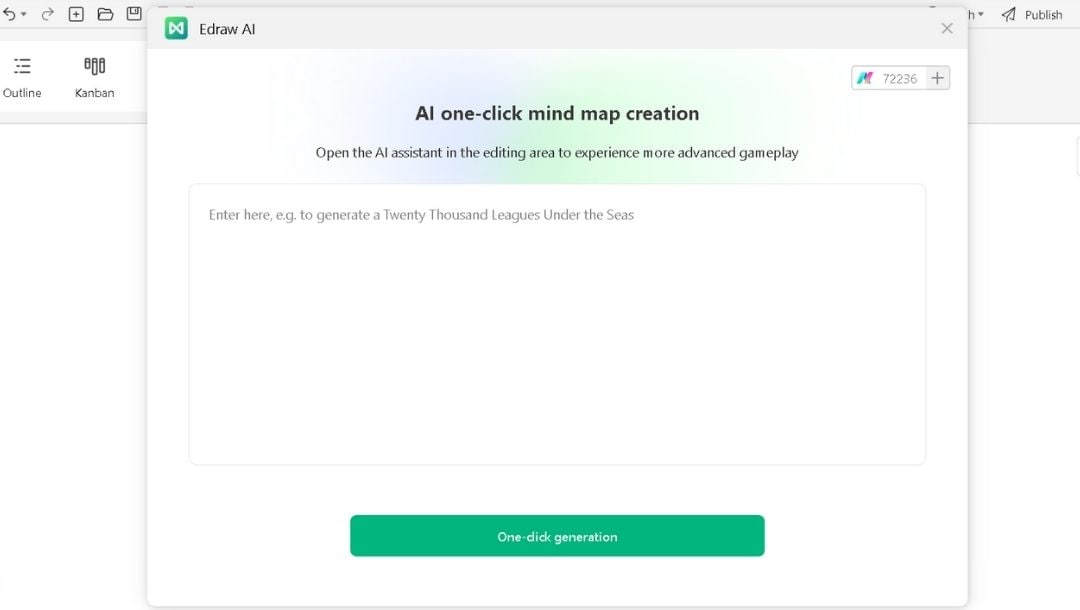
Enter your prompt in detail and click One-click generation.
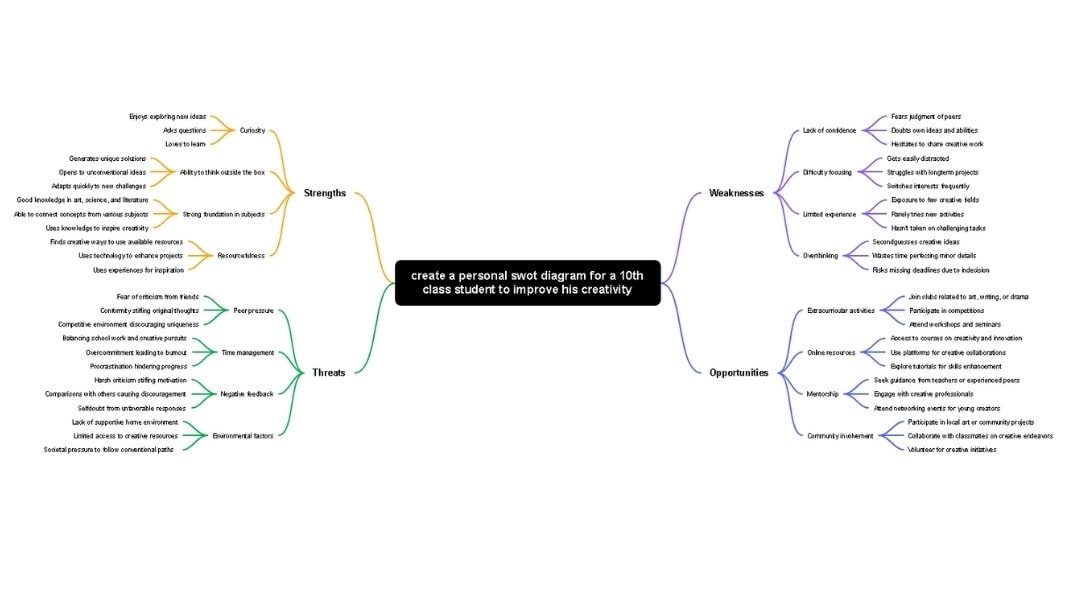
Example prompt to try: "Create a personal swot diagram for a 10th-class student to improve his creativity."
This way, I get a well-structured mind map automatically with four main branches and several filled-in points.
Step2 Fix Misfiled Points Fast
Next, review the content. Click any branch to edit wording.
Drag items to the right branch if the AI misfiled them. Split any long line into one idea per node. Delete repeats so each point is unique.
Use numbers where suitable. Keep each line under 8–10 words when possible.
Step3 Customize the Design So It Scans Fast
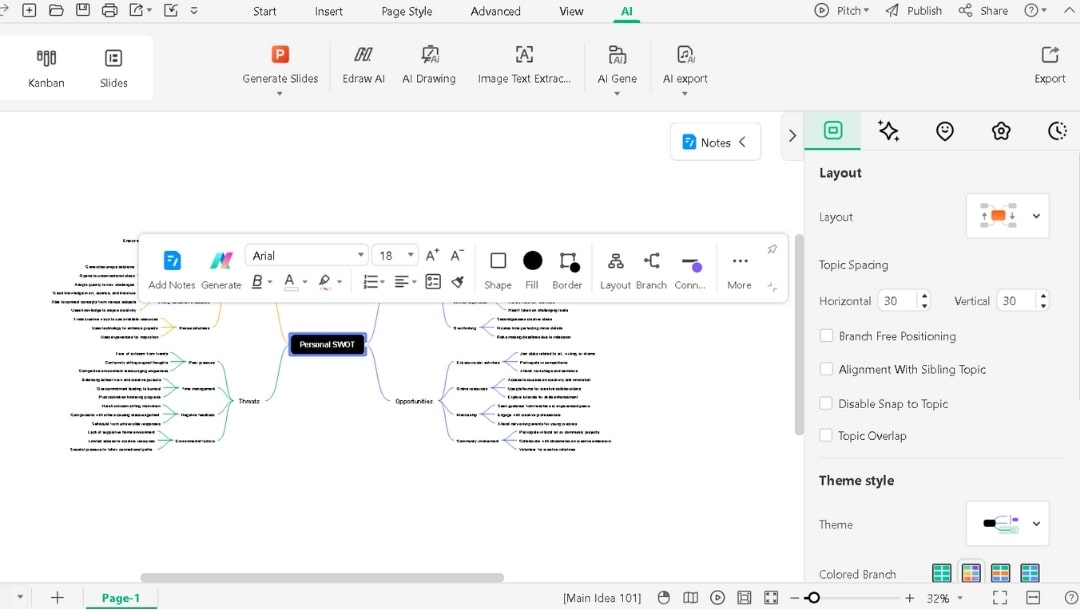
Open the right side panel. Pick a balanced layout and apply a clean theme style.
Select any item to color-code so it is easy to identify. Modify Relationship lines only for key links as required.
Delete irrelevant points by selecting them and pressing the Delete key. Expand sections by right-clicking a branch and choosing Add Subtopic. Type new points based on your research.
Step4 Save and Export Your SWOT Map
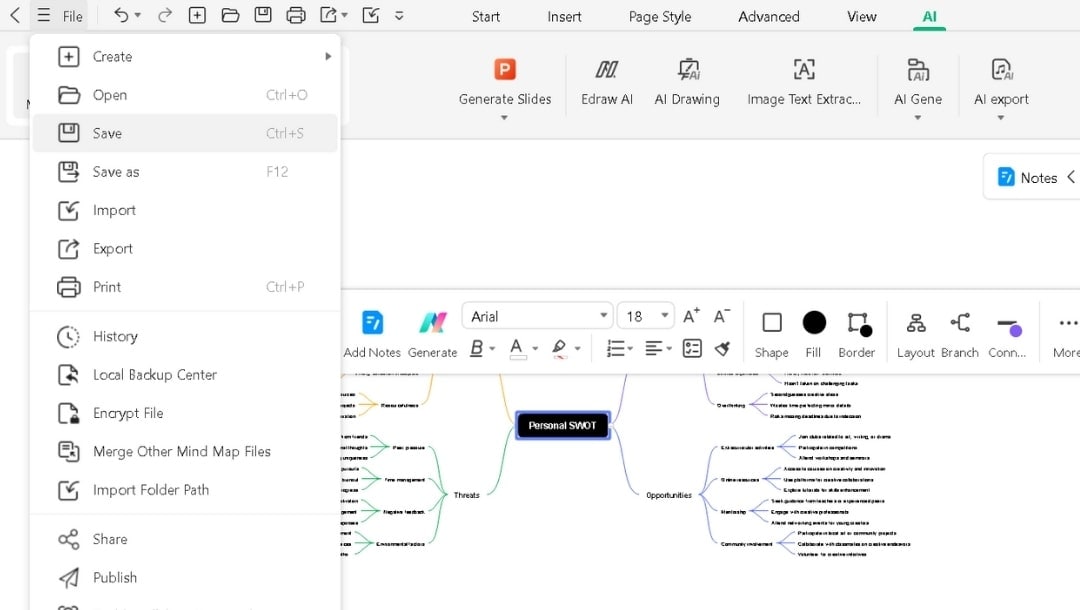
Once finalized, click File at the top left corner.
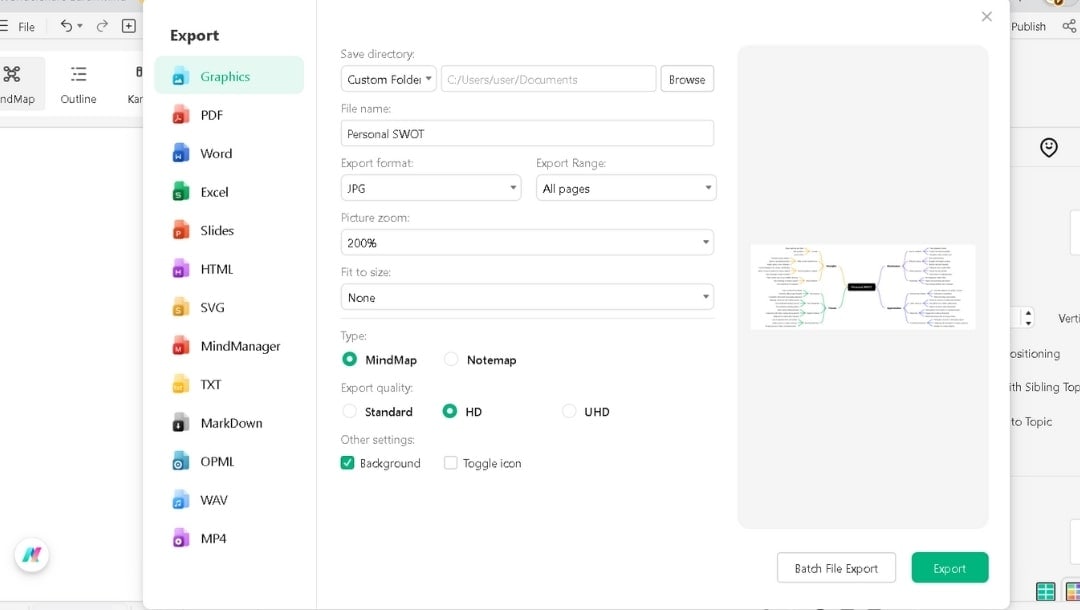
Select Save to keep your work as an EdrawMind file for later updates. To download it, hit Export in the same File menu.
Pick your format:
- PDF for reports
- PPTX for slides
- JPEG/PNG for emails
Select the required settings, such as where to save the file on your computer, and then click Export. There you have it.
Method 2: Using a SWOT Analysis Template
If you prefer a ready-made structure, EdrawMind's built-in SWOT analsysi templates help you start quickly and maintain consistent formatting. Based on my personal experience, here’s how you can use this method professionally:
Step1 Find a Template that Fits Your Use
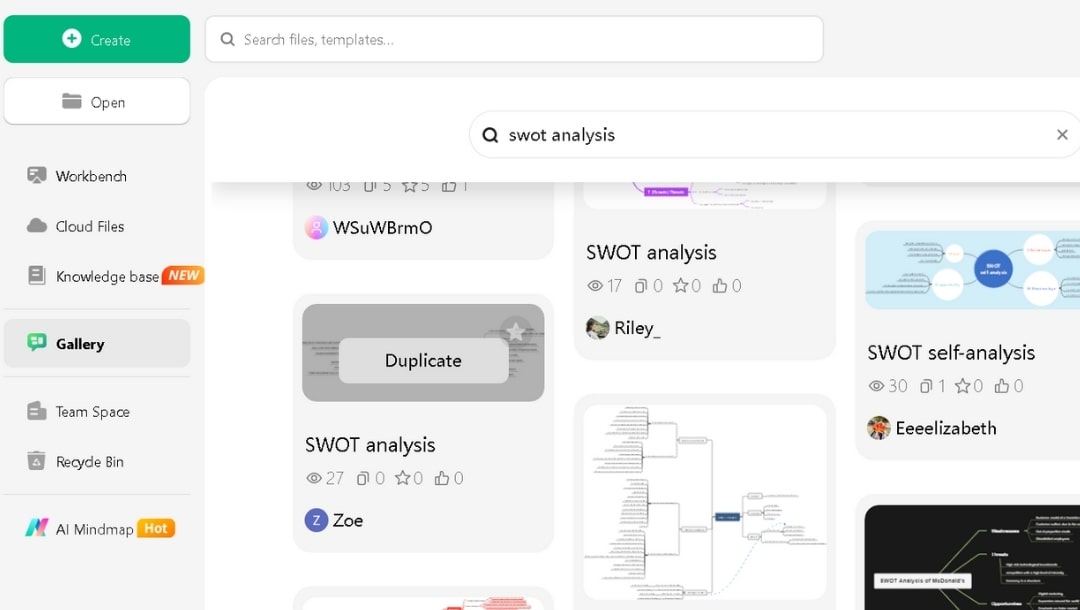
Click Gallery on the left sidebar. Search "SWOT analysis".
Preview layouts (quadrant, circular, or mind map style). Select one that suits your preferred format. Click Duplicate to load it with placeholder content.
Step2 Add Data and Customize
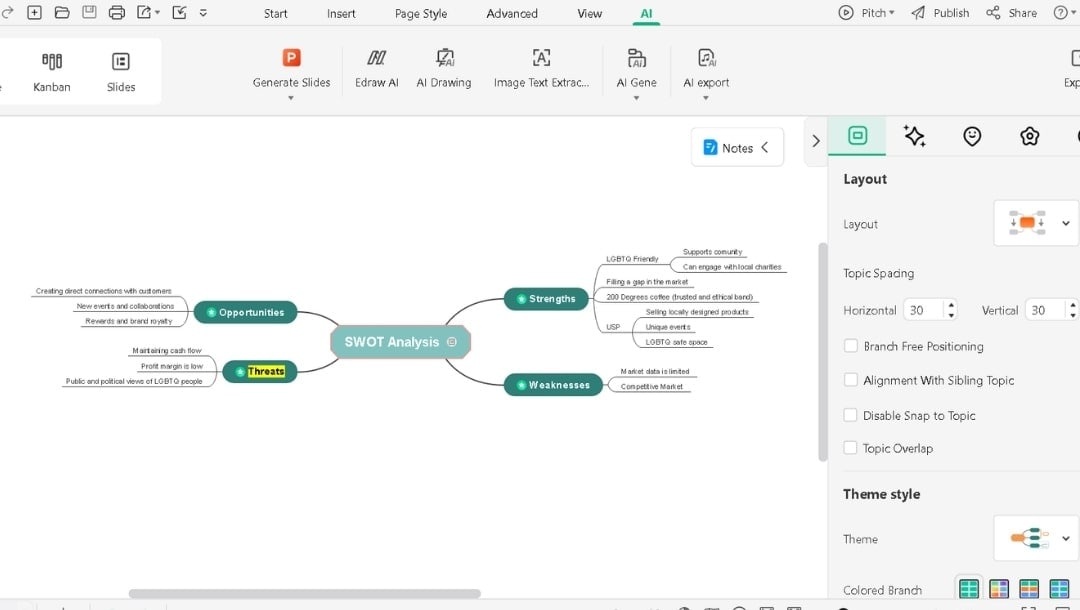
Replace the text with your own content. Adjust the text, style, font, color, and other elements as needed.
Modify the layout, customize the theme, and make other tweaks, just as I showed in the previous method.
Step3 Save and Share Your Work
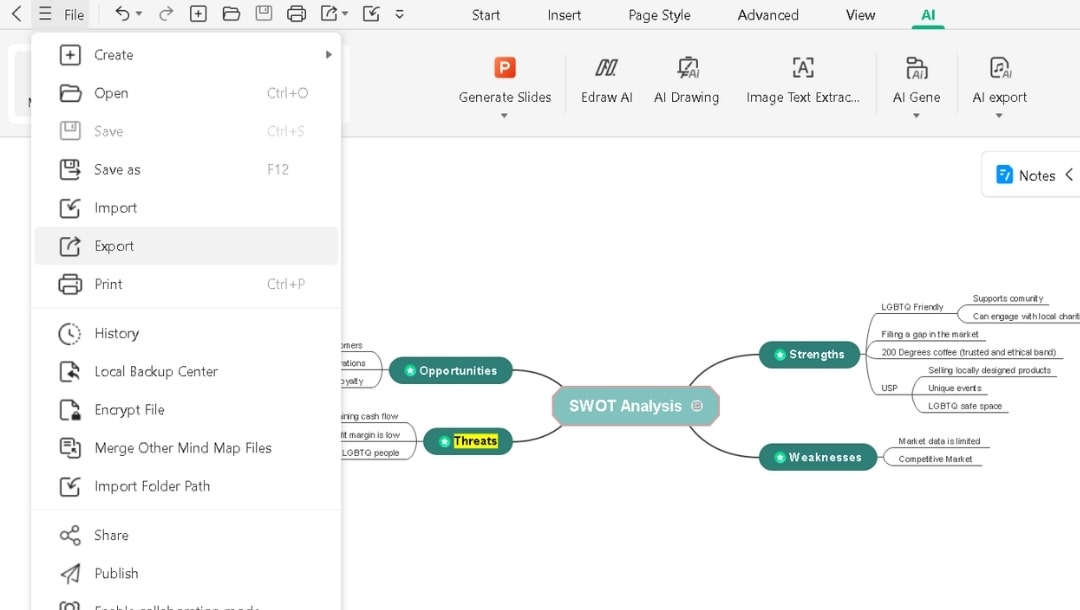
Go to File > Save. To share, click File > Export.
Select PDF for documents or PNG for slides.
SWOT Analysis Examples
Here are a few ready-to-edit SWOT examples you can personalize directly in EdrawMind:
Business SWOT Analysis
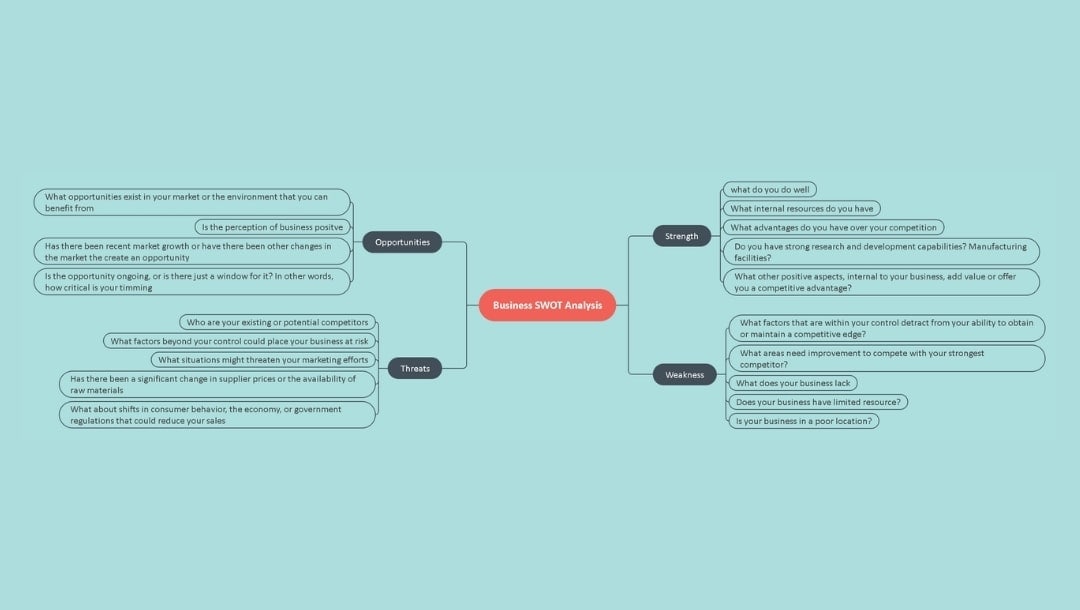


The business SWOT example focuses on an idea with four branches, covering both internal and external factors. Short questions in each branch help you shape your thinking. The blue layout makes it smooth to read.
I like it as it works well for anyone reviewing their project or business.
Company SWOT Analysis
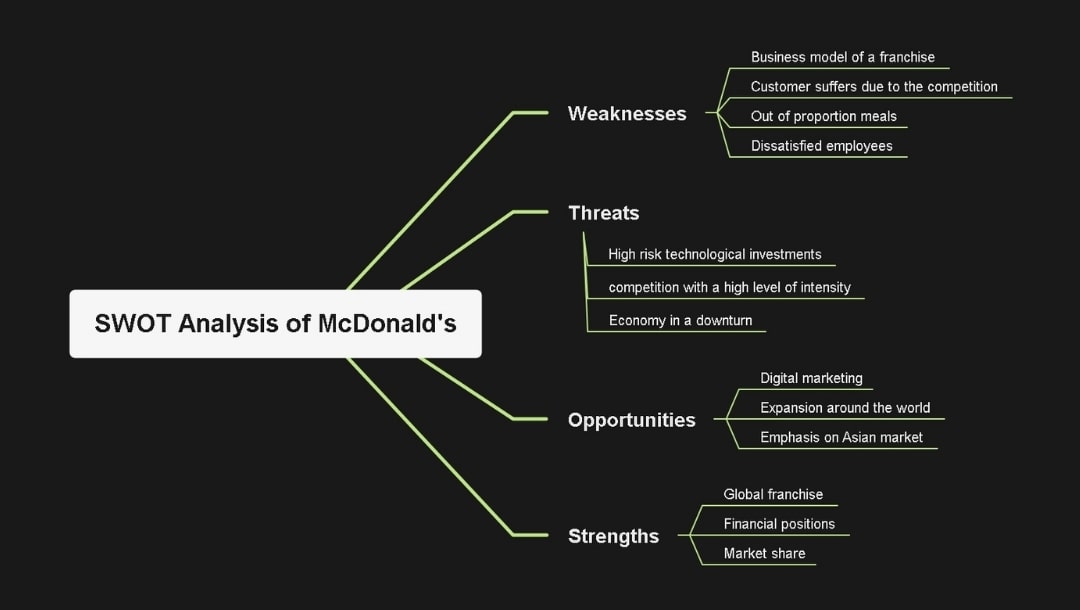
The company map shows McDonald’s SWOT analysis in dark mode. White text and light green lines make each branch stand out.
All the factors are separated from one another. You’ll also notice examples such as global reach and risks associated with tech investments.
I’d recommend this swot example for students and analysts who need a fast overview.
Personal SWOT Analysis
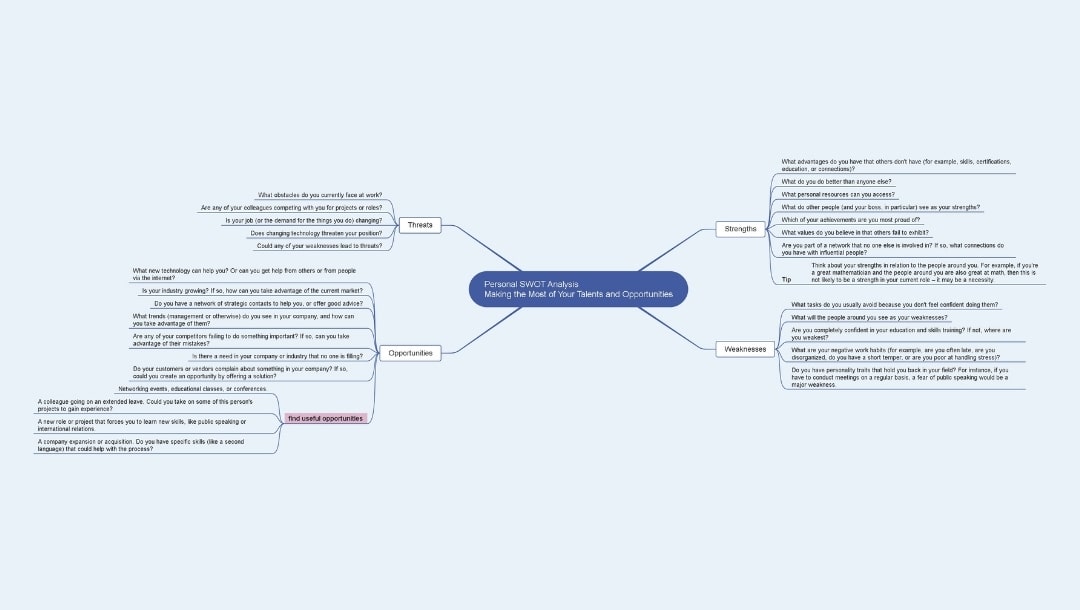
The personal SWOT analysis example outlines your strengths and areas of improvement, including skills and real-life experience. It focuses on utilizing your talents and opportunities effectively.
The blue-and-white design keeps everything simple and includes a note from Louis Pasteur. It helped me shape goals, plan my career, track improvements, and more.
Tips for an Effective SWOT Analysis
Here are some of the best tips I use to make my swot analysis highly effective:
- Limit each section to five key points. If I add too many, I lose focus. I always rank them by urgency so the most important items stand out.
- Use numbers instead of vague words. For example, I write “12% market share” instead of “decent reach”, or “82% repeat customers” instead of “strong retention.” Numbers keep my analysis honest and actionable.
- Test each strength with this filter: "Can a competitor copy this in six months?" If yes, it's not a strength; it's standard practice. Keep only what truly sets you apart.
- Cross-check your map for cause and effect. Does any strength neutralize a threat? Does a weakness block an opportunity? Draw those links to reveal strategy gaps.
- Make threats specific and time-bound. I avoid vague notes like “increased competition” and write something precise, like “Brand X launching in our city in March.” Clarity drives action.
- Mark assumptions with a question mark. If I’m unsure, I note “Rising demand?” Then I verify the data before treating it as fact.
- Set a review date. Every quarter, I delete outdated points and re-rank everything based on current realities. It keeps my SWOT relevant and reliable.
Why EdrawMind Is the Best Tool for SWOT Analysis
- EdrawMind is compatible with Windows, Mac, Linux, and web browsers. You can start on your laptop and finish on your phone without losing any work.
- AI handles the boring setup. Instead of drawing four boxes and labeling them, you type one sentence and get a structured map. Then you spend time thinking, not formatting.
- You get access to a vast library of 6,000+ diverse templates. Most tools limit you to five or ten basic layouts.
- The free version doesn't expire. You can create, save, and export SWOT diagrams without paying a penny. Paid plans add cloud storage and team features.
- Real-time cloud sync means your latest changes appear everywhere instantly. No more emailing files to yourself.
- No internet? You can still work offline and save your maps on your computer. When you go online, everything updates automatically. Your data stays private and secure.
- Export works smoothly. I've sent SWOT maps as PDF, PNG, Word, and even PowerPoint without formatting breaking.
Wrap-Up
I find SWOT analysis so practical because it’s simple, just four key areas. It forces me to think honestly and gives me a clear direction forward.
With EdrawMind, the process is even faster and sharper. The AI drafts my map in seconds, templates give me structure, and exports always look polished.
I no longer need hours of setup or endless meetings to find clarity. I just open EdrawMind, start my SWOT mind map, and watch scattered thoughts turn into a focused, visual plan of action. Try it now for free to see for yourself what it offers.
 EdrawMind
AppsEdrawMind Online
EdrawMind
AppsEdrawMind Online