

When a presentation deadline hits, design can quickly become a burden. Empty slides and countless formatting tweaks may slow down progress.
So, I turned to AI, and Google's Gemini seemed worth testing since it works inside Google tools I already rely on.
My goal was to find out if it saves time or just adds to the cleanup work later. After using it for a real project, I found both hits and misses that needed other fixes.
In this Gemini AI PPT Review, I'll walk through where it performs well, where it falls short, and some Gemini AI alternatives to handle those gaps better.
In This Article
- What Is the Gemini AI Presentation Tool?
- My Experience: Creating a PPT with Gemini AI
- What Surprised Me While Testing Gemini AI Prompts
- More Practical Tips for Better Gemini AI Presentations
- Some Best Gemini AI's Alternatives You Could Consider
- Gemini vs EdrawMind vs Other Tools: A Quick Comparison
- How to Make an AI Presentation in EdrawMind
What Is the Gemini AI Presentation Tool?
Gemini AI’s presentation tool builds a slide deck from a simple prompt inside its Canvas workspace.
You describe the topic, the audience, the tone, and the length of the deck. Gemini then creates a clear set of slides with titles, short bullet points, and light notes. You can review it and export it directly to Google Slides.
The leading edge is speed and comfort. The deck opens in Slides, so you can use all the tools you already know. You can edit text, adjust spacing, add charts, insert images, and collaborate with others through comments and version history.
The only limit is design and layout. Gemini doesn't offer any themes or brand choices. You will need to add visuals and refine the look after export, primarily if the deck is intended for clients or marketing purposes.
It gives you a strong start by removing the blank page, and Google Slides (or another design tool) helps you shape the final style.
My Experience: Creating a PPT with Gemini AI
Creating a presentation with Gemini AI felt surprisingly fast. I didn't need to open PowerPoint or spend time manually choosing layouts.
Step 1 Open Gemini AI and Describe Your Presentation
I opened Google Gemini Chat and switched to the Canvas option under the Tools menu.
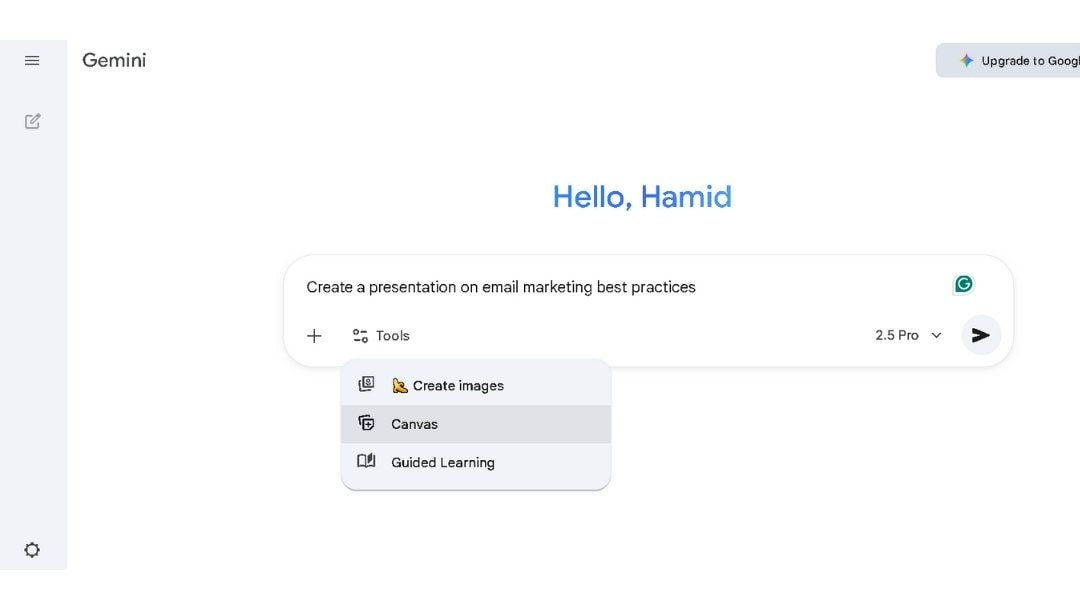
Here, I described my presentation. Within seconds, Gemini started generating a complete presentation draft.
Step 2 Review and Open in Google Slides
Gemini AI creates your slides in a few seconds, adding titles, bullet points, and brief notes for each one.
You can review the presentation before saving it. Once it looks good, download it as a PDF.
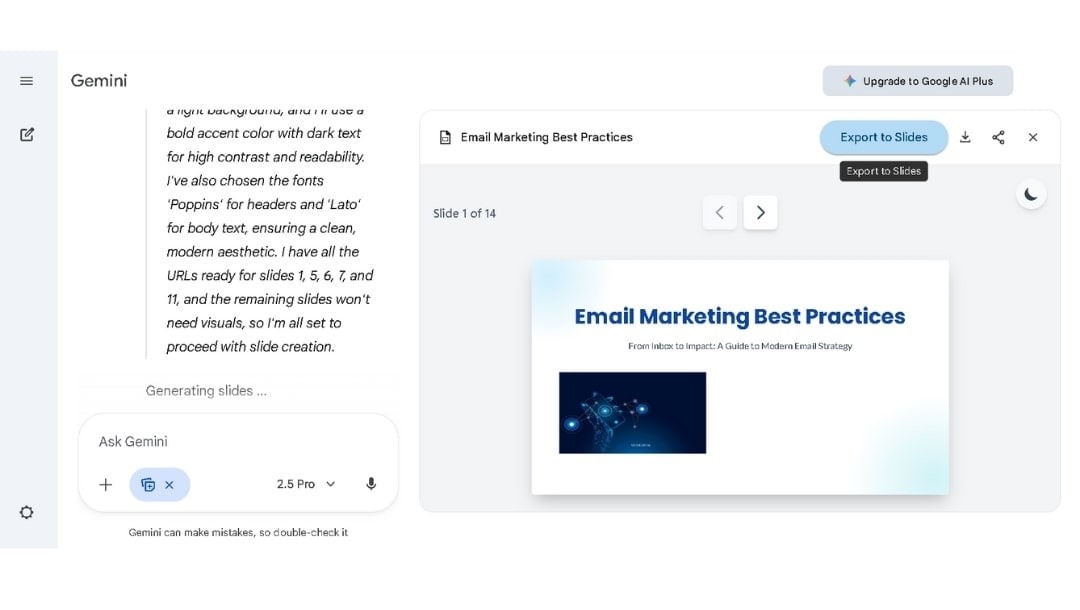
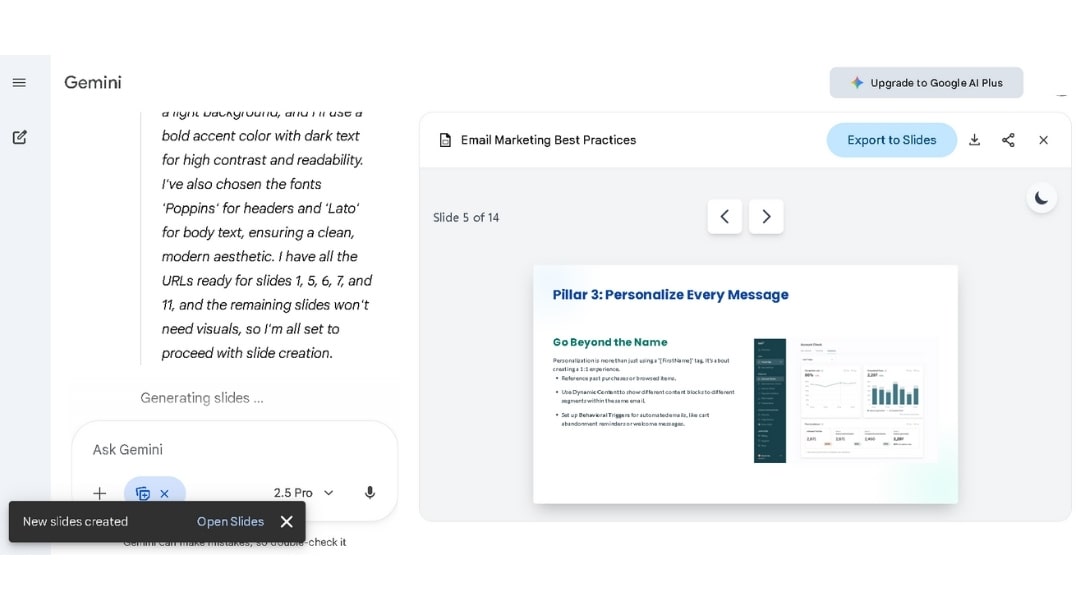
To make changes or adjust the layout, I open it in Google Slides by clicking Export to Slides and then Open Slides.
Step 3 Customize Your Slides
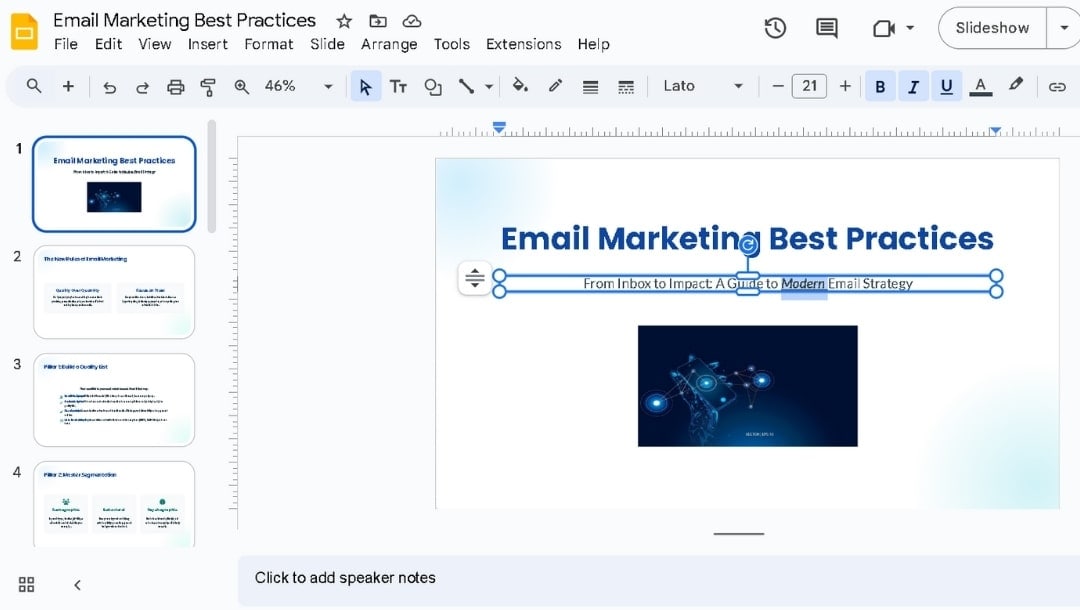
Within Google Slides, I can edit any content by double-clicking on it.
Replace points, rewrite text, or change content directly.
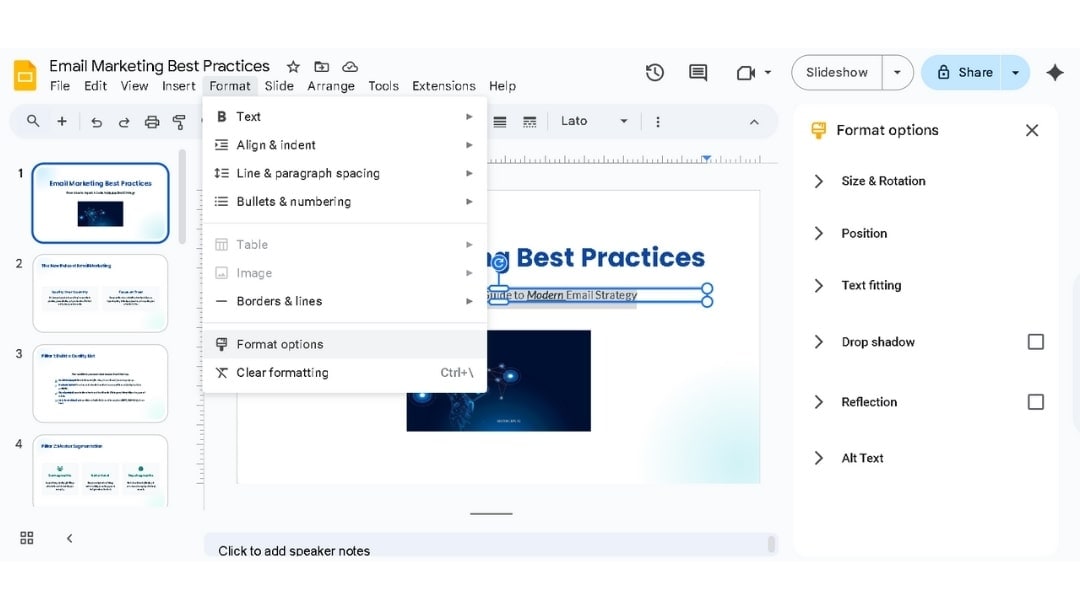
Then, I use the top bar and click Format to set alignment, spacing, bullets, and numbering.
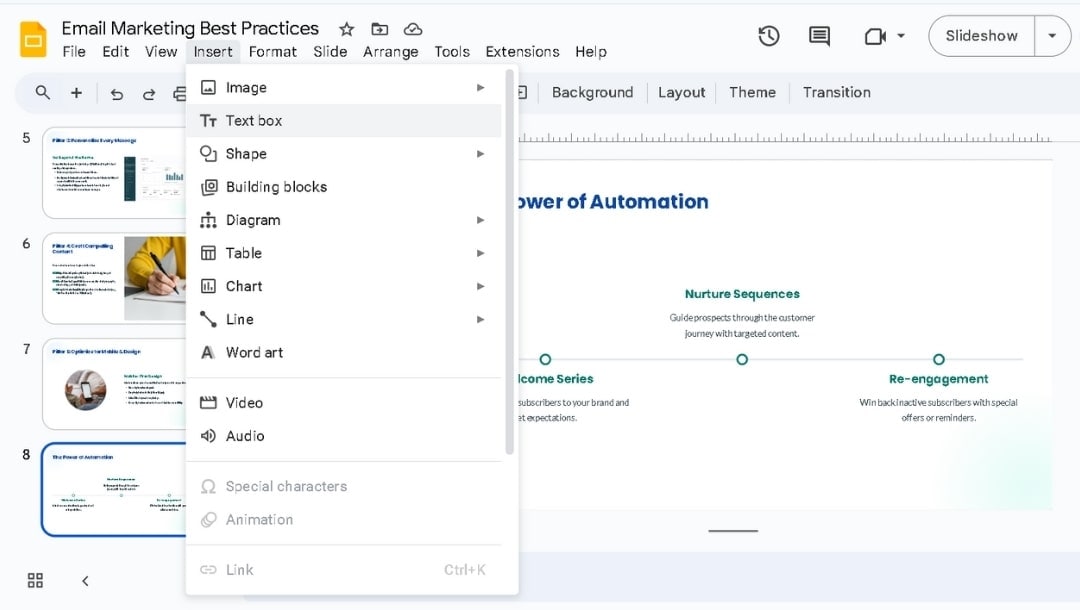
You can also go to the Insert tab to add images, text boxes, diagrams, charts, videos, or audio.
Highlight text and change its style, color, or background from the toolbar.
A consistent look by changing slide backgrounds, picking custom colors, and setting fonts.
For a quick preview, click Slideshow on the top-right corner to see the full-screen version.
Step 4 Save and Share
When you're done refining your deck, click File > Download and choose your format. Gemini's support for exports:
- Microsoft PowerPoint (.pptx)
- PDF Document (.pdf)
- Plain Text (.txt)
- JPEG or PNG Images
- Scalable Vector Graphics (.svg)
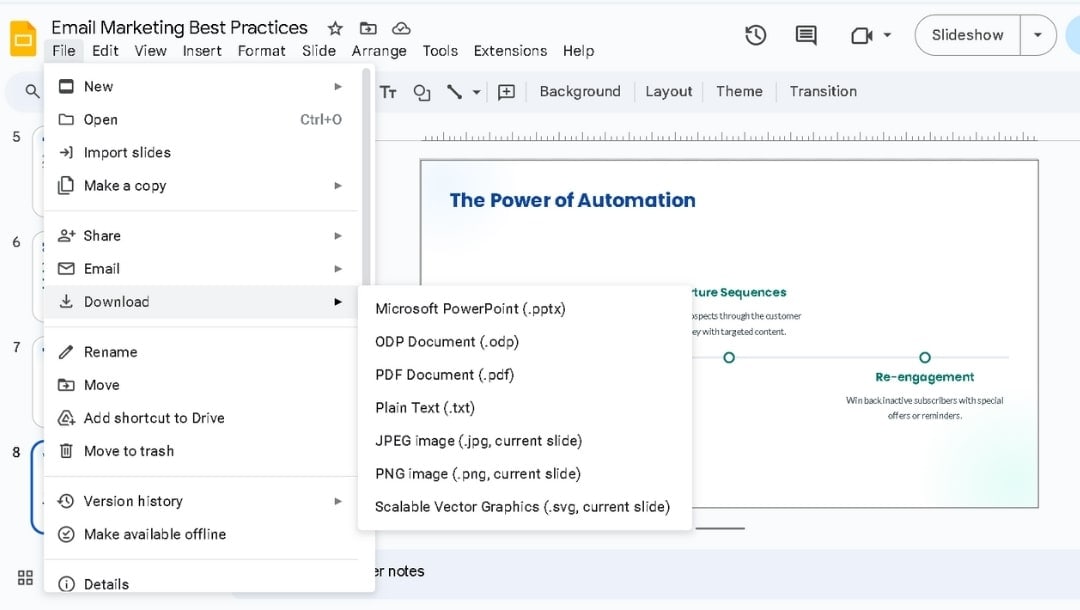
You can also share your presentation via a link directly from Google Slides.
It makes collaboration simple, perfect for teammates, classmates, or clients to review or edit your slides in real time.
What It Did Well
- Gemini created clear and professional-looking slides from simple prompts.
- Each slide had a title, main points, and a neat layout.
- I could easily edit everything in Google Slides, changing colors, adding icons, or rearranging items as needed.
- Exporting was quick, and the file retained its original appearance after saving.
- It made sharing ideas simple without needing to fix spacing or design.
- Gemini handled the setup, allowing me to focus on improving the content.
Where It Fell Short
- The designs looked similar, and some slides repeated ideas.
- A few slides had too much text, while others had very little.
- It didn't allow me to select themes or brand colors before exporting.
- I had to add images, icons, or videos by myself later.
- Works best for basic slides, not creative or picture-heavy ones.
- Feels more like a quick draft than a finished presentation.
What Surprised Me While Testing Gemini AI Prompts
My first few runs taught me one thing fast: Gemini gives you exactly what you ask for, nothing more.
So, the more structured your input, the better your slides.
My First Prompt
I understood why prompts fail, when I prompted it like: "Create a presentation about remote work", produced five flat slides.
Then I tried: "Create a 10-slide presentation about remote work best practices for new managers, including communication tools, productivity tips, and team building."
The result was far clearer, with organized sections that matched my goals.
One Phrase Changed the Tone
Adding just "for new managers" instantly shifted the tone. The slides became more relatable and less technical.
Gemini adjusts automatically when you define your audience, catering to students, executives, or beginners.
The Science of Good Gemini Prompts
This structure gave me the most consistent decks:
- Topic: Digital well-being habits for students
- Audience: First-year college students
- Goal: Create a clear 10-slide deck for a 10-minute talk
- Structure: 1 Agenda, 7 Content, 1 Summary, 1 Q&A
- Per slide: Title + 3 bullets under 12 words
- Speaker notes: 2 short lines for talking points
- Tone: Plain, active, grade 7 reading
- Placeholders: Add [Image:] or [Chart:] where visuals help
- Terms to use: screen time, study blocks
- Terms to avoid: hype, ultimate, best
The system works because it keeps slides concise, guides visuals, saves editing time, ensures a complete structure, and maintains a clear and consistent tone.
More Practical Tips for Better Gemini AI Presentations
Even with strong prompts, the results depend on how you refine them afterward. These small habits make a big difference in quality and time.
- Edit in Two Passes: Fix structure first, visuals second. Keeps focus and speeds up workflow.
- Ask It, "Why?": Request logic behind slide order or emphasis to spot gaps fast.
- Add Concrete Data: Replace generic points with stats, examples, or context-specific info.
- Save Prompts: Build a mini library of reusable prompts for reports, training decks, or pitches.
- Keep a Text-Only Version: A clean copy is easy to revise, share, or rebuild later.
Some Best Gemini AI's Alternatives You Could Consider
Gemini's speed impressed me, but after a few runs, I realized it often provided me with structured text rather than actual presentation design.
So, I tested a few other AI presentation makers to see which ones could fill those gaps. Here's what I found while actually using them.
EdrawMind
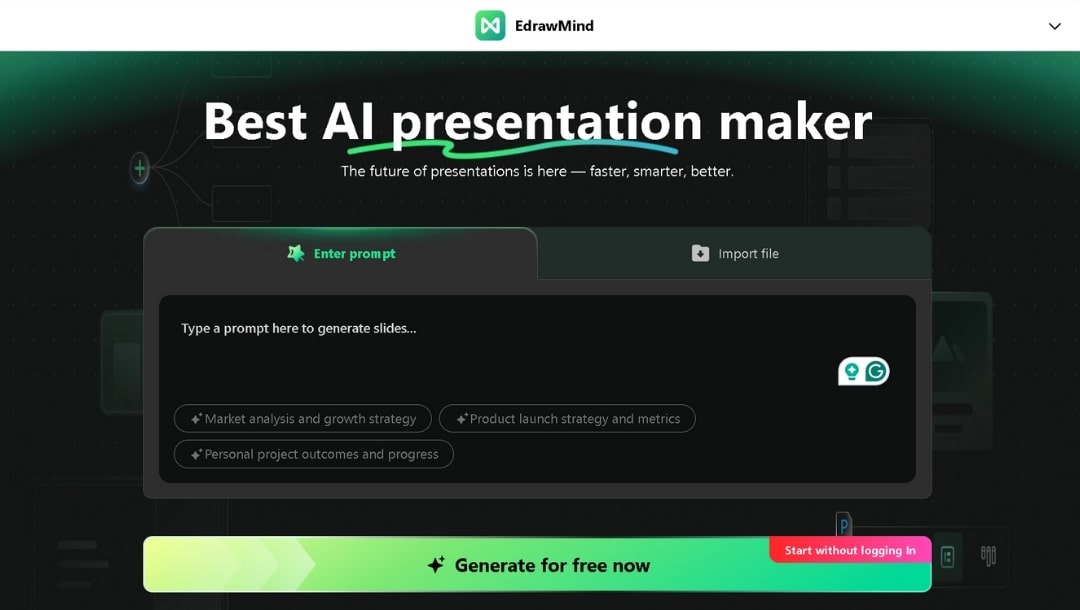
 Try the app & get 500 free AI tokens


When I need both structure and creative control, I reach for EdrawMind. It's one of the best tools that lets me see my ideas in outline mode before turning them into slides.
For a recent project management task, I began by creating a simple mind map. "Planning," "Execution," and "Monitoring" were the main branches with subpoints underneath. Then, I turned it into Presentation Mode.
EdrawMind created an 11-slide deck instantly that followed my map exactly. Every central node became a section, and every subnode became a quick bullet.
That visual-first approach makes a huge difference when my ideas are still in a state of flux. I can reorganize thoughts, reorder branches, or even merge two topics before locking them into a slide format.
Additionally, with its AI Slides feature, I can select a template design before generating the deck. Gemini can’t do it yet, often leaving me with random formatting. EdrawMind also allows me to export to PowerPoint, PDF, images, and more without compromising layouts.
Best for: Training sessions, research decks, or any presentation that begins with complex ideas.
Canva
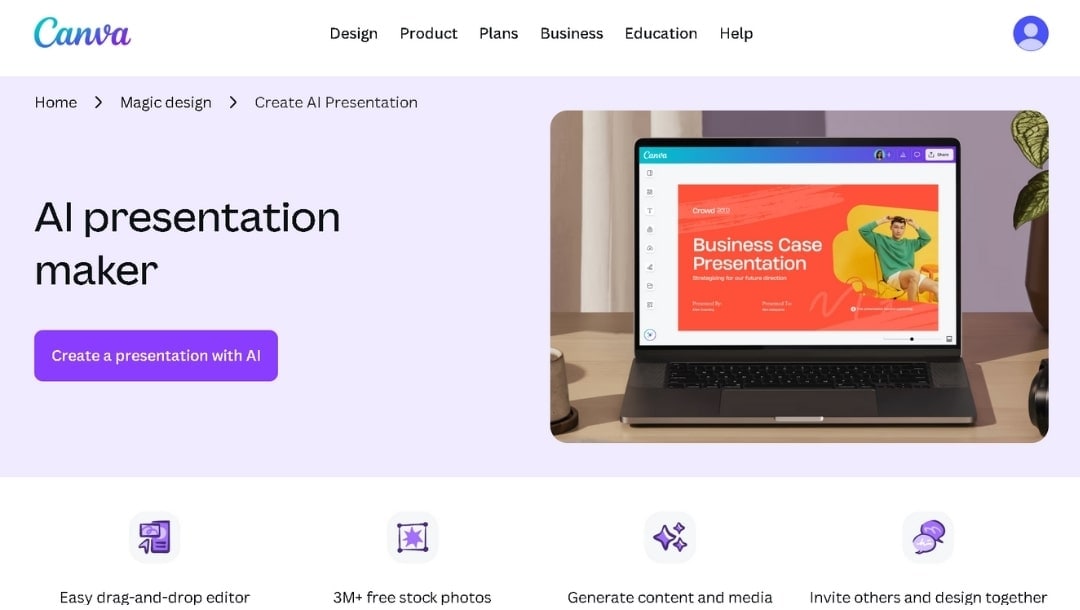
When I want full design freedom, Canva makes the process fun instead of frustrating. I typed a short prompt: "Build a 7-slide presentation about digital wellbeing habits." Within seconds, the AI gave me a decent starting deck.
The real value comes after that. I opened the slides, applied my brand kit, swapped images, and adjusted layouts using drag-and-drop. Canva's design library is unmatched, featuring a wide range of stock photos, fonts, and icons that are all ready to use.
It's also the fastest tool for visual polish. You can duplicate a layout, apply animation, and share it instantly for live feedback. Gemini feels plain by comparison.
Limitation: Canva's AI features are only available with a paid subscription. Additionally, it doesn't always grasp the context deeply. You get good visuals, but sometimes the slide content needs to be rewritten to sound clear and more human.
Best For: Marketing, education, and creative decks that need to look professional fast.
Gamma
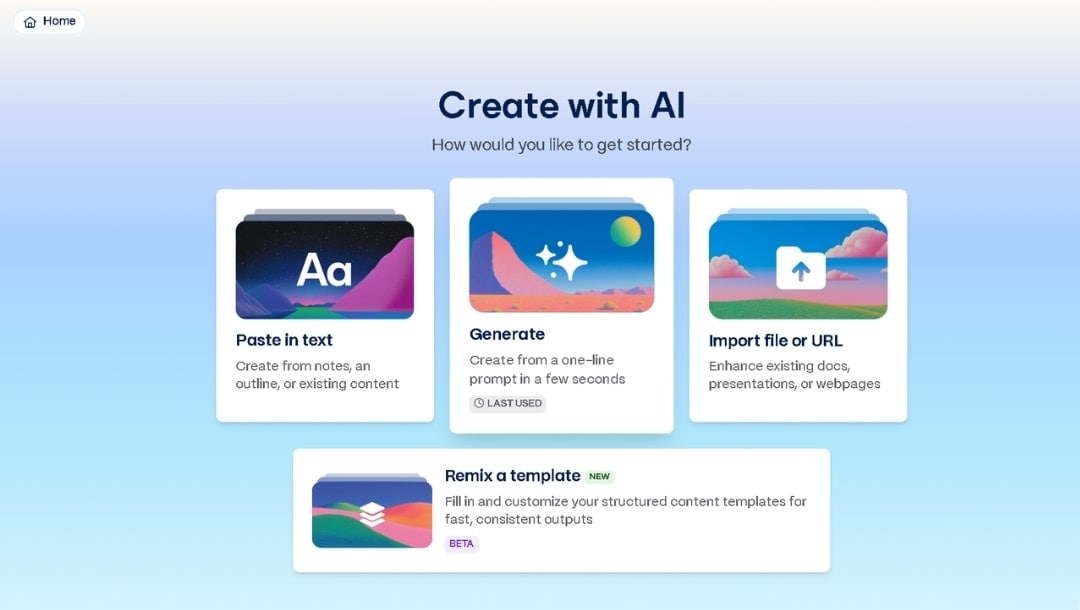
Gamma is still worth keeping in your toolkit if you like interactive presentations. It doesn't create regular slides, but rather a scrollable, web-like deck where each "card" opens to reveal content.
When I built a product overview, its web presentation felt fresh and modern. I can embed videos, charts, and even Notion pages all within one link. That link worked instantly for sharing, no attachments or downloads needed.
The layout control isn’t as advanced as professional presentation builders, but for live reviews or remote learning sessions, it's perfect.
Limitation: If you need offline access, this isn't the tool.
Best For: Pitches, workshops, or online demos where you want your audience to click and explore.
Gemini vs EdrawMind vs Other Tools: A Quick Comparison
Here’s how these top tools compared after testing each one in practical projects.
| Tool | Strength | My Experience | Platform | Price |
| Gemini AI | Fast text-based slides | Suitable for quick drafts but limited in visual design | Web (Google Slides) | Google One AI Premium |
| EdrawMind | Visual structure + AI slides | Mind map + deck conversion saved me major rework time | Desktop, Web, Mobile | Free + $15.90 |
| Canva | Creative control + templates | My go-to for polished visuals and branded decks | Web, Mobile | Free + $15 |
| Gamma | Interactive web decks | Smooth sharing and multimedia embeds | Web | Free + $10/seat |
How to Make an AI Presentation in EdrawMind
Creating an AI presentation in EdrawMind takes only a simple process that gives you complete control over structure and visuals.
Step 1 Start with AI Slides
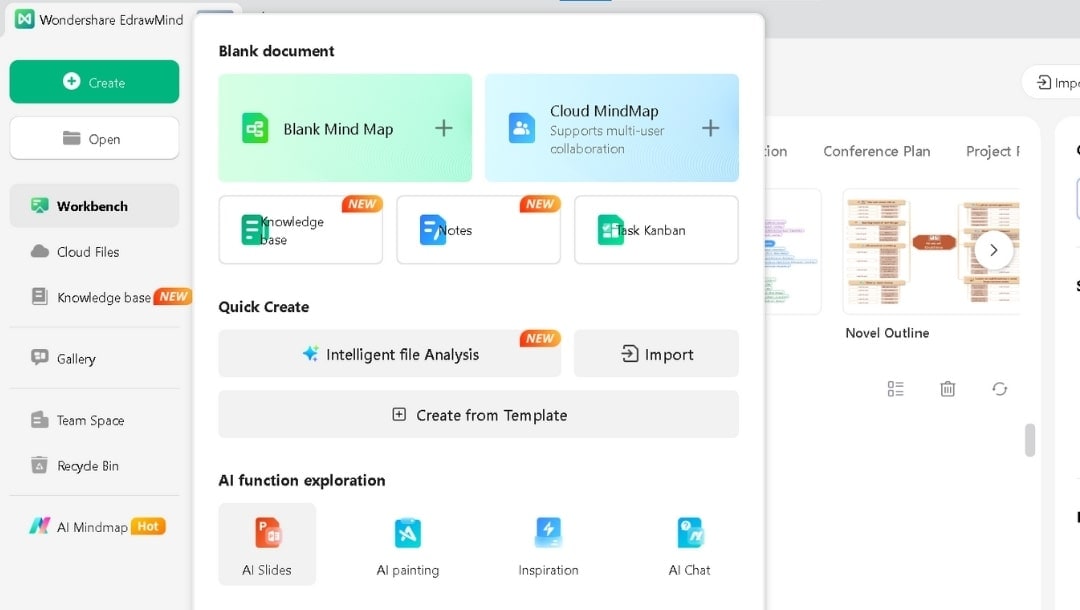
From the home screen, click Create and select AI Slides.
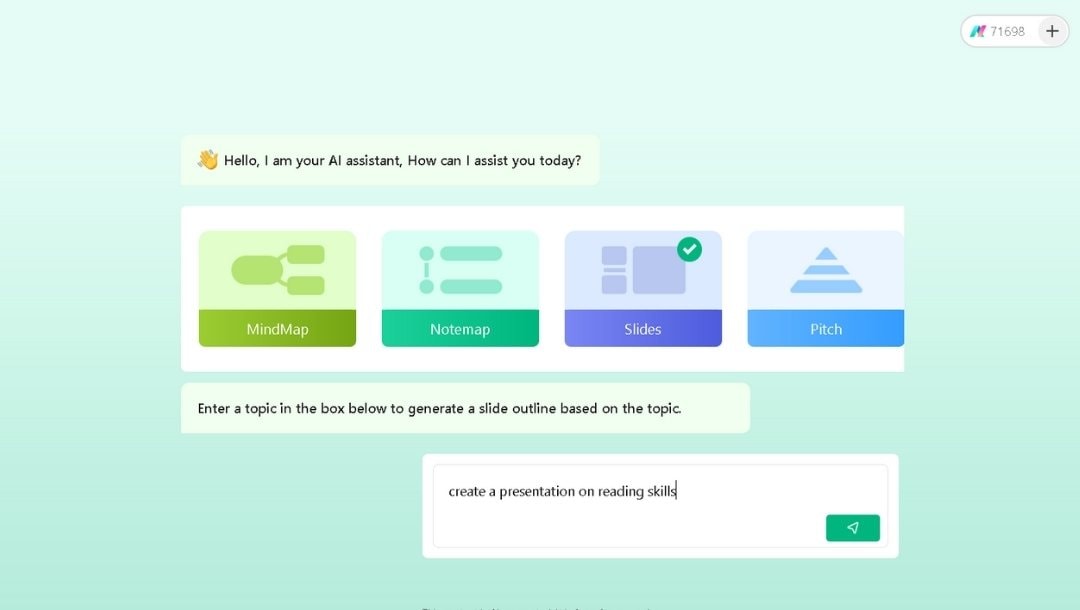
Enter a topic or short prompt.
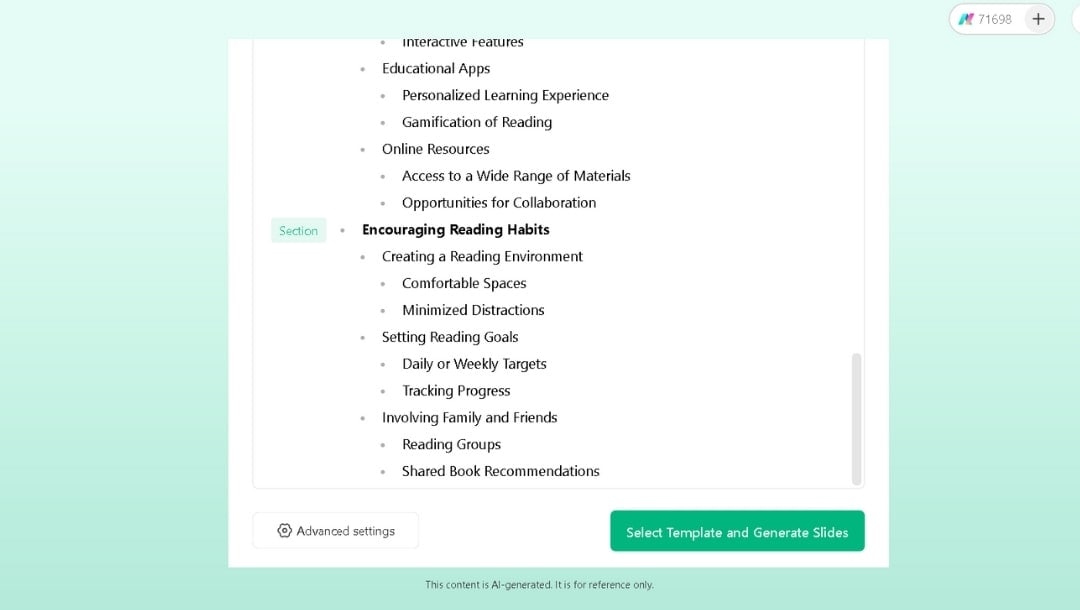
The AI instantly builds a clear, hierarchical outline that mirrors the connections between your ideas.
Then, select a suitable Template.
Step 2 Pick a Template Style
After selecting the template, hit Generate Slides to continue.
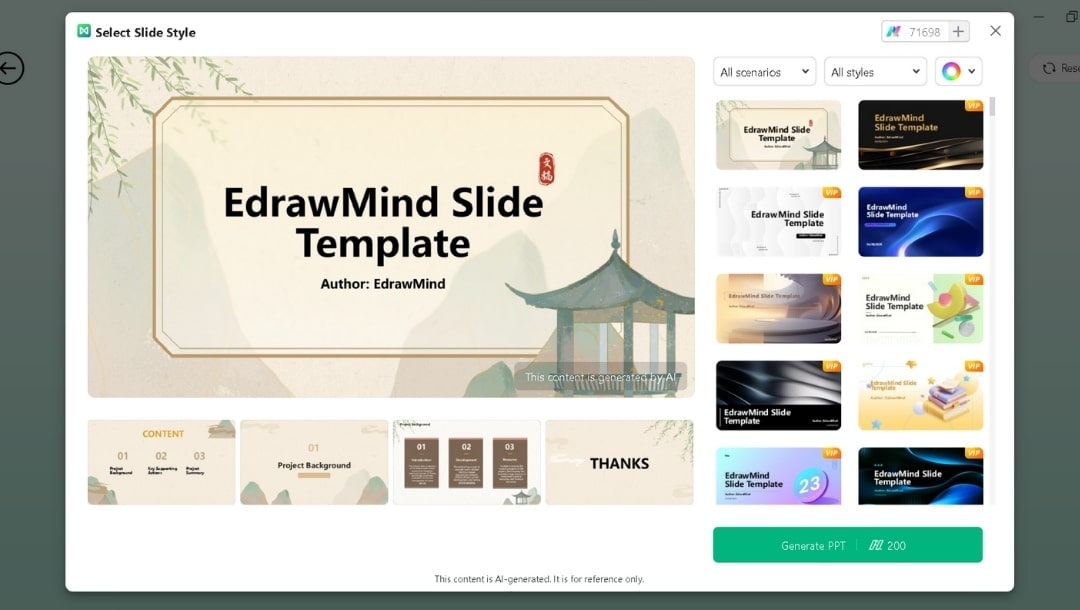
They include professional, modern, academic, and creative themes.
Select a suitable one and press Generate PPT.
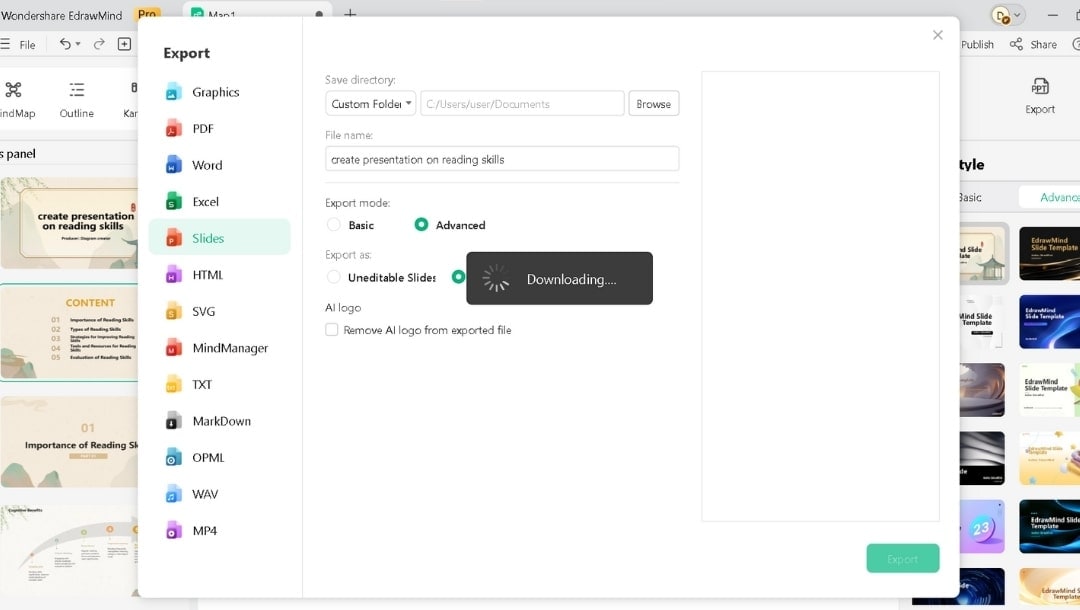
Step 3 Review, Edit, and Export
Check the generated slides.
You can customize the layout, design, text, or colors within EdrawMind.
Finally, export or present from the app.
 EdrawMind
AppsEdrawMind Online
EdrawMind
AppsEdrawMind Online