


Rushing slides often leads to messy flow and lengthy edits. AI can help, but only if it reduces the cleanup. That is the real test in this Gamma AI Review.
This review focuses on the essentials: generating a deck, refining it, and assessing the result. I track time saved, changes needed, and how well the output holds up.
If Gamma passes for your cases, you will see it. If not, I point you to the best Gamma AI alternatives. Plus, you'll learn how to make an AI presentation for free.
In This Article
What Is Gamma AI?
Gamma AI is a browser app for AI-made decks, docs, and web-like pages. It is often pitched to teams that want quick, polished outputs with less work than PowerPoint. You can use it for client proposals, product briefs, and internal updates.
The output style is the key feature. Gamma builds with cards that open into pages. The result blurs the line between a slide deck, a document, and a small site.
You do not need design skills. The layout is automatic and responsive, so spacing, alignment, and reflow happen for you.
You work with blocks. Insert text, images, tables, and embeds. The Gamma presentation tool supports sources like YouTube, Figma, Miro, Notion, and Google Sheets.
Themes manage fonts and colors across the project. When done, present live, share a link with permissions, or export to PDF and PowerPoint.
The service offers a free plan and paid tiers, including brand assets, extra AI credits, and enhanced export settings.
My Experience: Creating a Presentation with Gamma AI
I built a 10-card presentation to test Gamma AI's PPT generation workflow. The total time from prompt to completed deck was less than 10 minutes.
Step 1 Get Started and Enter Your Prompt
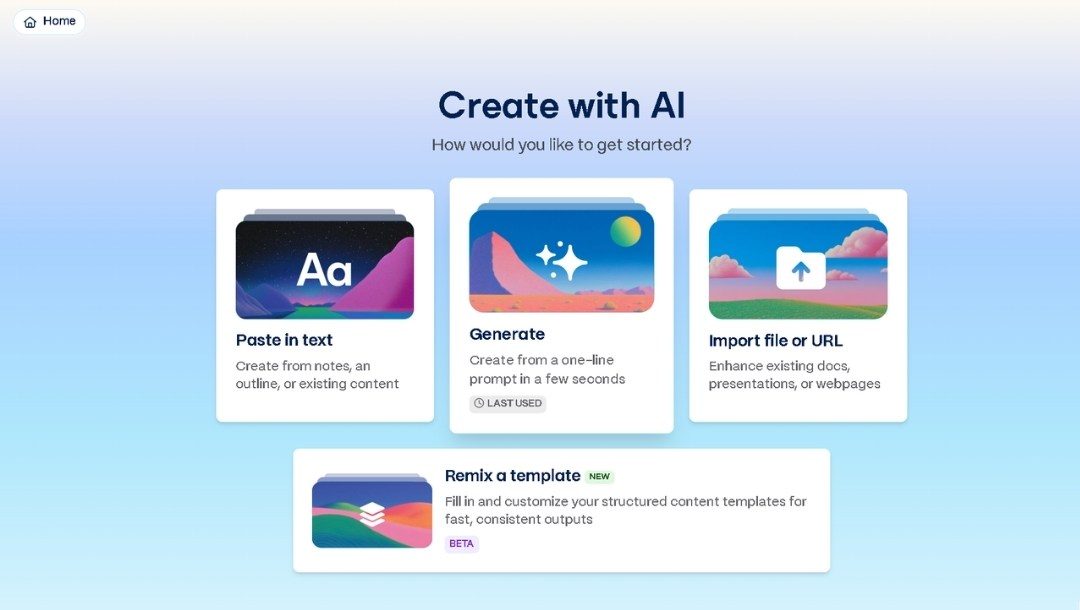
I clicked the Generate card on the main screen after logging in.
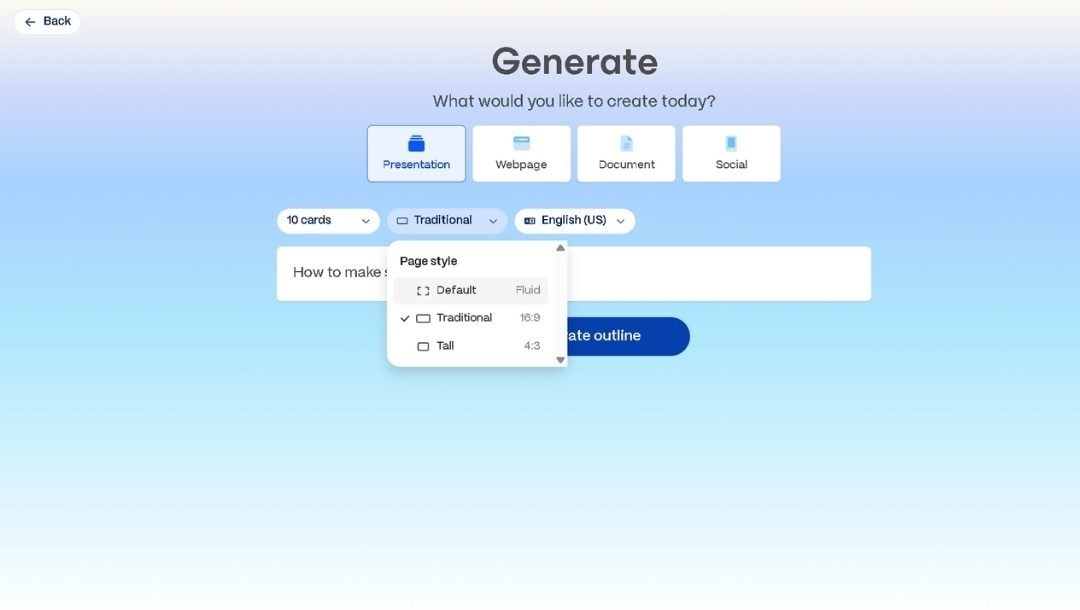
On the next view, I selected the Presentation format to build a slide-style deck.
I set the deck length to 10 cards and chose a Traditional Page style.
In the prompt box, I typed, “How to make sushi: a guide for beginners”.
Then, I hit the Generate outline button.
Step 2 Customize the Outline and Set Other Parameters
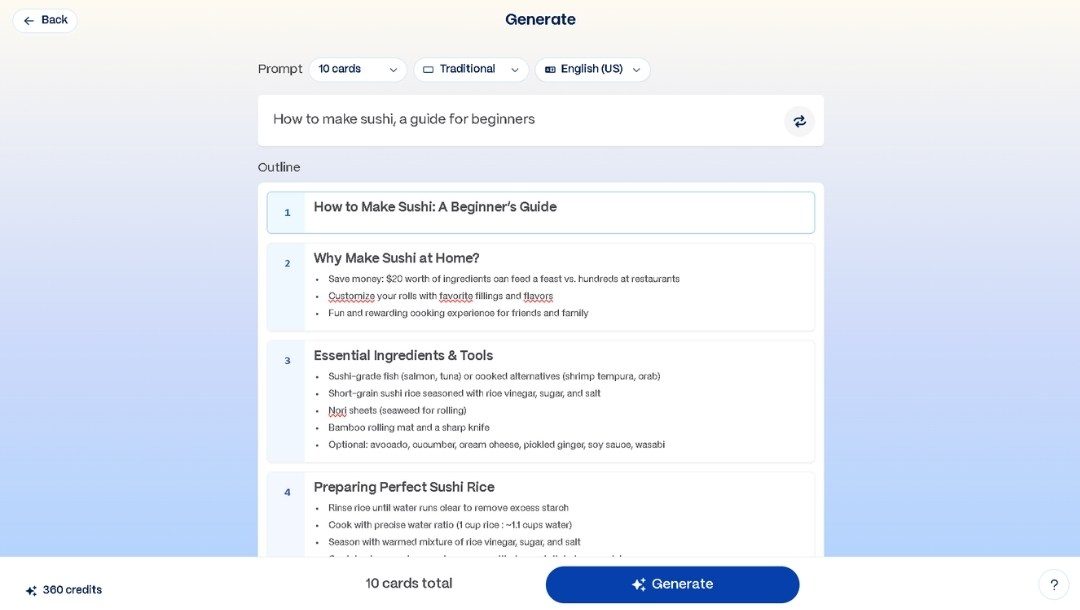
Gamma generated an outline instantly with a title and bullets for each card.
I dragged a prep step earlier in the flow and removed one repeated point.
I kept the total at 10 cards for pacing.
Next, I set the text density to Concise for quick bullets.
Then, I picked an incandescent theme for a visually appealing layout.
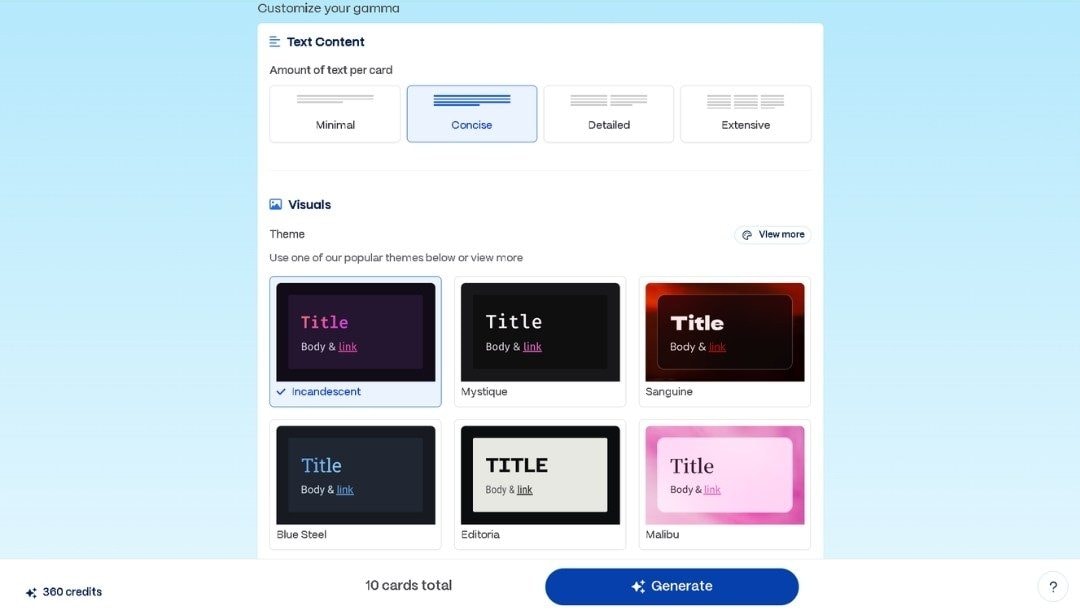
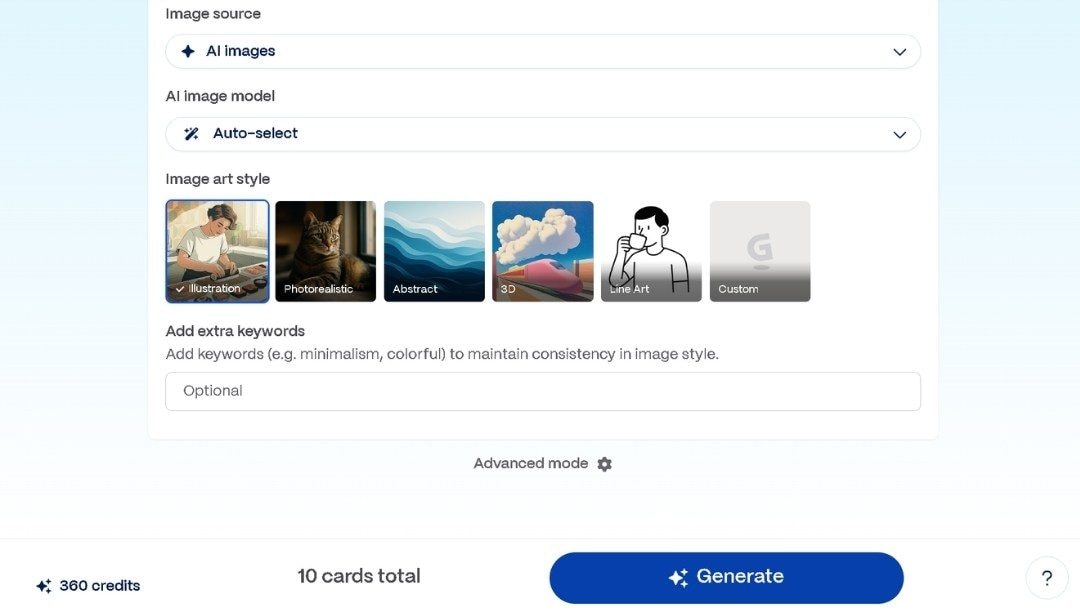
In Visuals, I chose AI images. However, you have other stock photo options to use images from.
I added simple style keywords: ingredients, rice, rolling. It is optional, as well.
Finally, I left the model selection on its default setting and hit Generate.
Step 3 Make Quick Edits
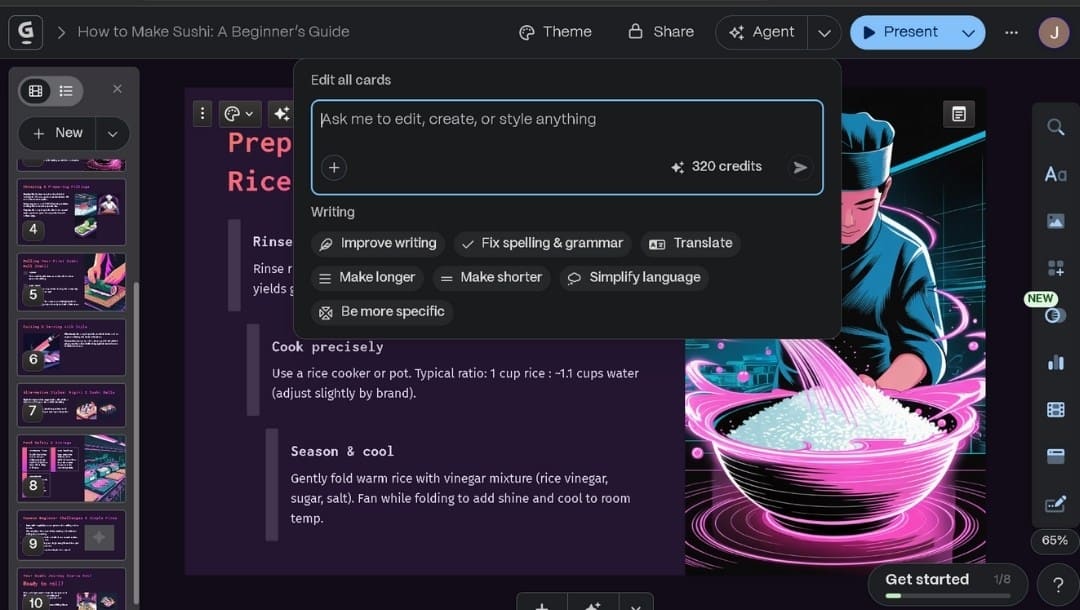
Within a minute, the whole deck appeared, complete with cards, images, and headings.
You can use the inline AI Agent to rewrite long sections, if any.
I split one dense paragraph into bullets for scan speed.
You can swap images that don’t fit and keep the rest.
The right-side panel features multiple tools for quick layout, design, theme, text, and other modifications.
Step 4 Download or Share Your Presentation
You can hit the Present button to run through the deck once for a quick final review.
I used Share to copy a collaboration link for real-time peer reviews.
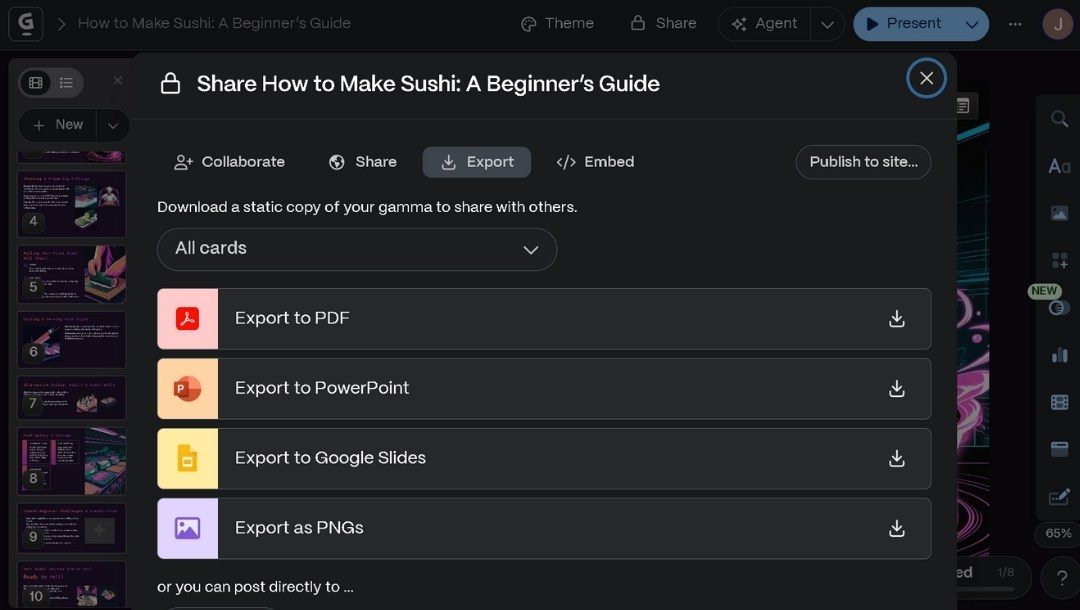
I clicked Export and saved a PDF for email.
You can also export PowerPoint/Google Slides for a teammate who wants to edit it later.
Also, you can publish it to your site or LinkedIn.
What Worked Well
- Fast setup: One prompt, one outline, and a full deck in minutes.
- Precise flow: The outline aligns with the topic, so only minor tweaks are required, sometimes.
- Auto layout: No manual spacing. Cards and images get aligned automatically.
- Simple edits: AI Agent helps you quickly edit the deck without extra prompts.
- Visuals: AI images filled the space, so I don't have to hunt for stock.
- Sharing: Link sharing and PDF export were instant.
Where It Fell Short
- Limited layout control: I find it hard to fine-tune the exact placement of images or text.
- Generic visuals: Some images looked broad. Sometimes, a swap is needed.
- Basic tables: Formatting choices were limited for labels and widths.
- PowerPoint export: Live decks become static more often. I need to relink items in PPT.
- Online only: You require a stable internet connection.
Is Gamma AI Worth Integrating into Your Workflow?
Yes, for quick drafts and clean first passes. I use Gamma AI when I need a 10-15 card deck in a few minutes.
It took me 10-15 minutes from idea to final export.
The AI build step was under 1 minute. Edits took the rest.
It handles structure, layout, and starter images, and I verify facts and make minor tweaks.
For decks that need a tight brand layout, rich tables, or custom art, I prefer other tools for convenience.
For fast, clear presentations that you can share right away, it earns a place in the workflow.
Best Gamma AI Alternative Tools to Try
When I tested Gamma AI, I loved the speed, but sometimes I needed more control over structure, visuals, or offline work. Here’s how my experience was with the alternatives I tried, right from actual use.
EdrawMind
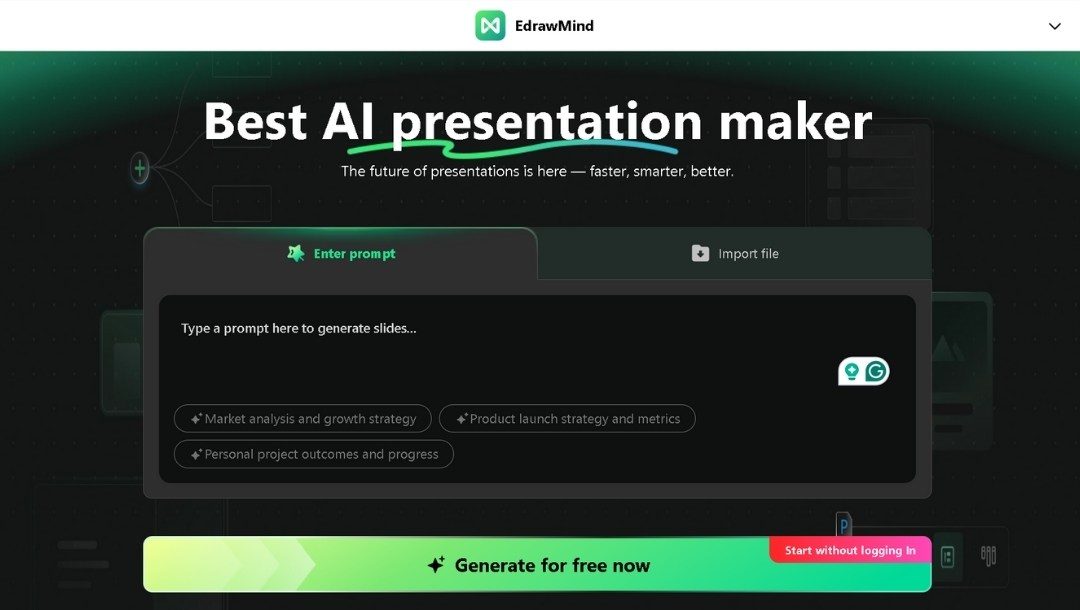
 Try the app & get 500 free AI tokens


When EdrawMind Is a Better Choice
EdrawMind is ideal when your topic requires a clear outline before designing slides. It also lets you view your presentation as a mind map in a single frame.
My Experience with EdrawMind
The AI Slides feature instantly builds an outline from a short prompt.
For example, when I typed “Leadership principles for small teams", it gave me a full hierarchy from core values to daily practices.
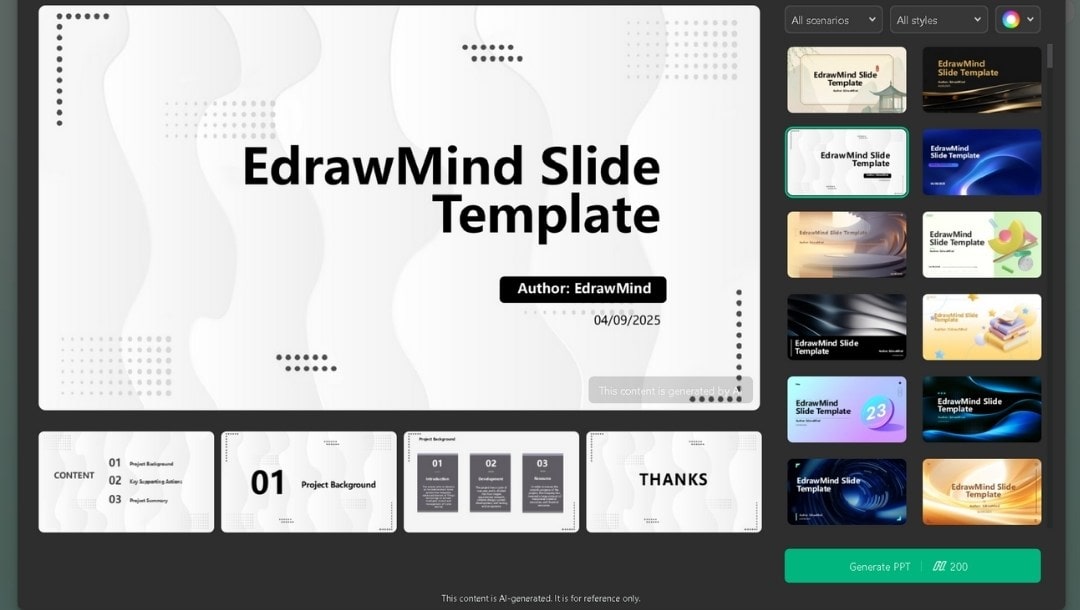
I could even edit the outline and select a suitable template from multiple available options before generating the final slides.
The slide design feels consistent, and edits are direct. You can switch between mind map and slide views without breaking the flow. It’s fast, offline-ready, and doesn’t lag on large projects.
What Stands Out
- Works even without internet (desktop mode)
- Visual hierarchy is clearer than Gamma's card view
- You can export directly to PowerPoint, PDF, images, and more
- Best For: Teachers, consultants, and trainers who want idea clarity before presentation polish.
Canva
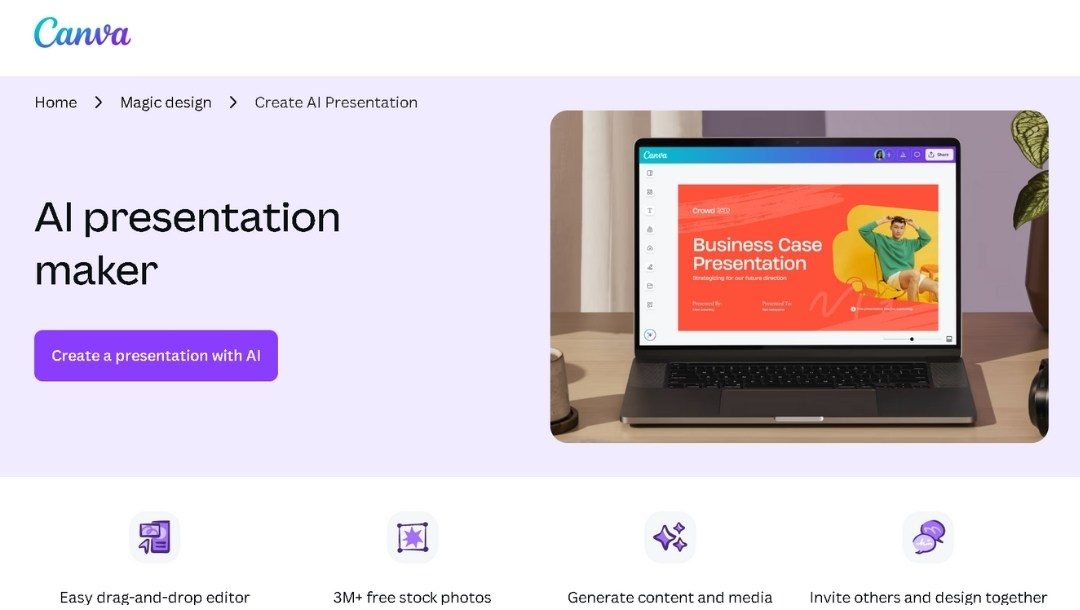
I use Canva when I need complete control over visuals but want a quick starting point. Its AI feature gives me a base deck fast, and then I can customize it freely.
For instance, I typed “ create a 10-page slide on 'How to present data to clients'”, and Canva produced 10 editable slides in under 20 seconds. The layout was clean, though basic, and I immediately started moving text boxes, swapping images, and adjusting colors. Collaboration is seamless. I invited a colleague for live edits.
Why I Prefer It
Canva strikes a balance between speed and freedom. I can start with AI-generated slides, but I can also make them uniquely branded without any restrictions.
Best For: Marketing decks, creative presentations, and any content where design aesthetics are key.
Beautiful.ai

Beautiful.ai felt like the perfect solution for decks with everything neat and aligned automatically.
When I built a pitch deck, the tool adjusted spacing, resizing, and layout without requiring manual nudging.
I like that you choose a Smart Slide type (chart, timeline, comparison), add your content, and it maintains consistent formatting. I could focus on the content, rather than fighting design issues. For teams, shared themes keep everyone’s decks uniform.
Why I Prefer It
It saves time on alignment and gives a professional look immediately. I don’t worry about branding errors or uneven spacing.
Best For: Startup pitches, corporate updates, and team presentations where consistency matters more than creative freedom.
Gamma vs EdrawMind vs Other Alternatives: A Quick Comparison
| Tool | Strength | AI Function | Ideal Use Case | Platform | Starting Price/mo |
| Gamma AI | Fastest generation | Writes and designs full decks | Internal updates, quick pitches | Web only | Limited free plan + $10/seat |
| EdrawMind | Structure-first workflow | Creates mind maps, slides, and images | Training, education, complex topics | Desktop, web, mobile | Free plan + $15.90 |
| Canva | Maximum creative freedom | Drafts starting slides | Marketing decks, multi-format content | Web, mobile apps | Free + $15 |
| Beautiful.ai | Automated design consistency | Adjusts layouts as you add content | Brand-compliant team presentations | Web only | Free trial+ $50/user |
How to Make an AI Presentation in EdrawMind
Creating an AI-generated presentation in EdrawMind is quick and intuitive. Here’s the step-by-step process:
Step 1 Start with AI Slides
From the EdrawMind homepage, click Create → AI Slides.
The workspace opens with a clean interface designed for instant outline generation.
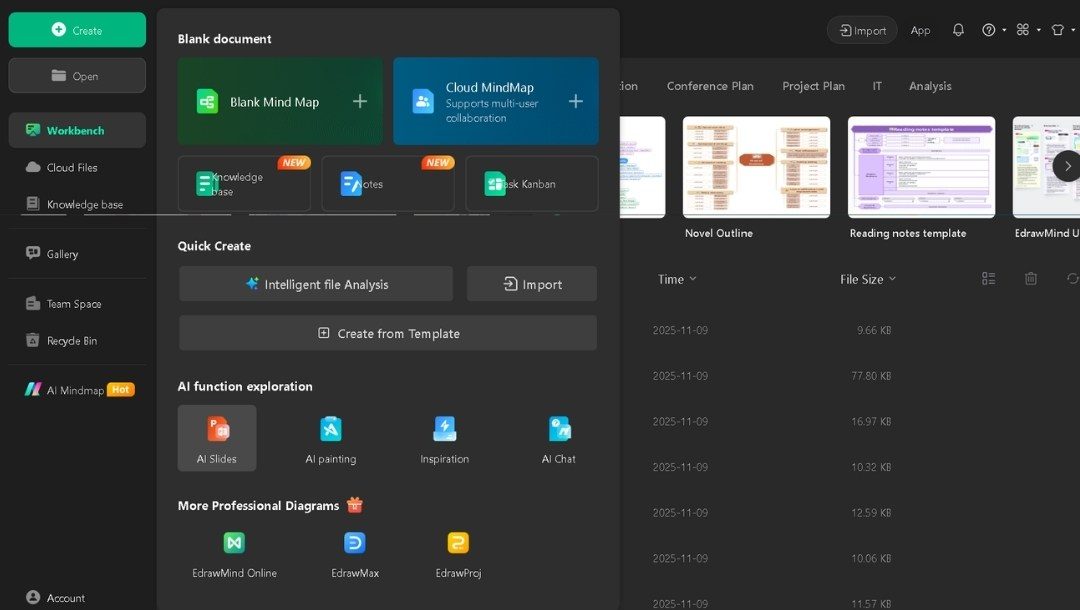
Step 2 Generate the Slides
Type a clear topic prompt, such as “how to read an org chart,” and enter.
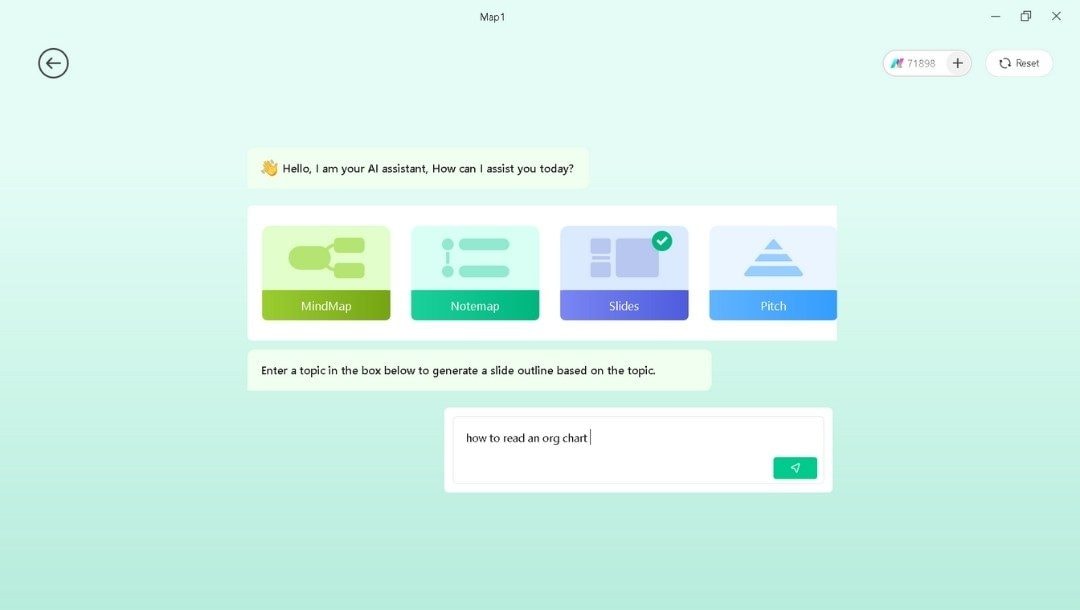
Click Select Template and Generate Slides to explore various layouts.
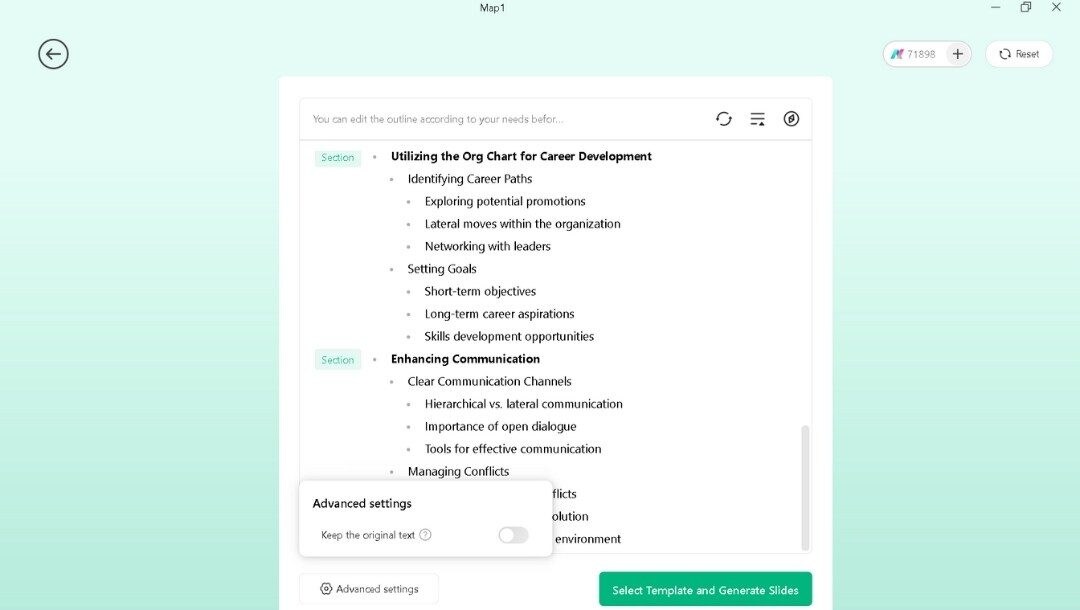
Once you have found a suitable option, tap Generate PPT.
Step 3 Edit and Share
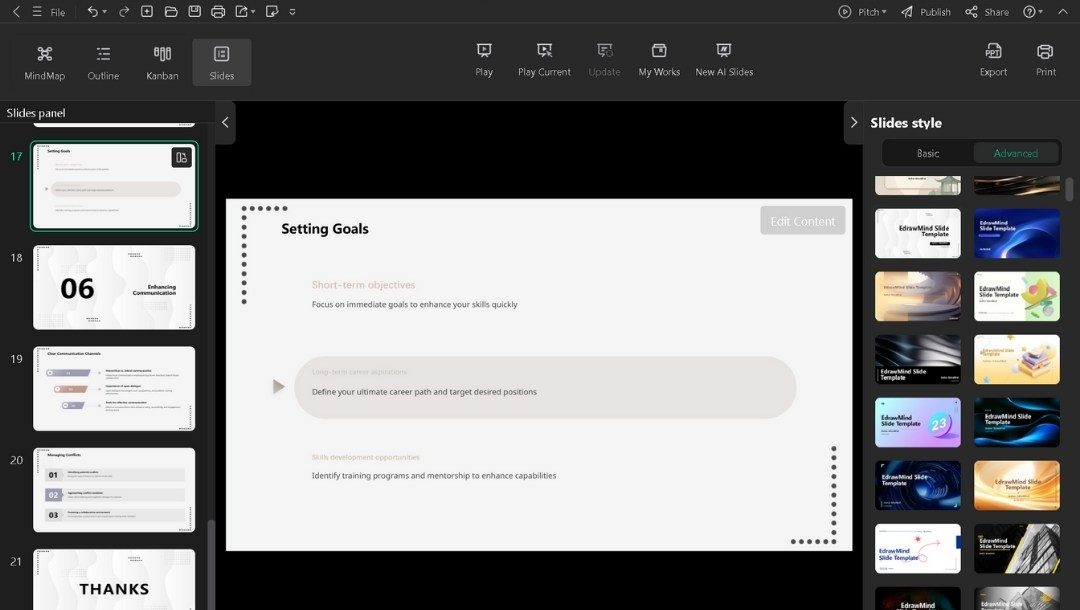
Review the generated presentation and, if needed, you can make tweaks directly in EdrawMind.
Finally, export to PowerPoint, PDF, or other suitable format
You also share online for real-time collaboration.
 EdrawMind
AppsEdrawMind Online
EdrawMind
AppsEdrawMind Online