About the Timeline Template
Timelines help you visualize your projects in chronological and structured order. When dealing with massive-scale projects or researching a thesis, you should create a timeline to represent your data, findings, milestones, and due tasks. By doing so, you can complete and manage your projects effortlessly by reducing the chances of error.
It can be challenging to select a reliable tool to draw accurate timelines for your project. In this article, we will address an excellent timeline maker known as EdrawMind that offers vibrant and multiple timeline templates. By using this tool, you can manage your complex and lengthy projects flawlessly.
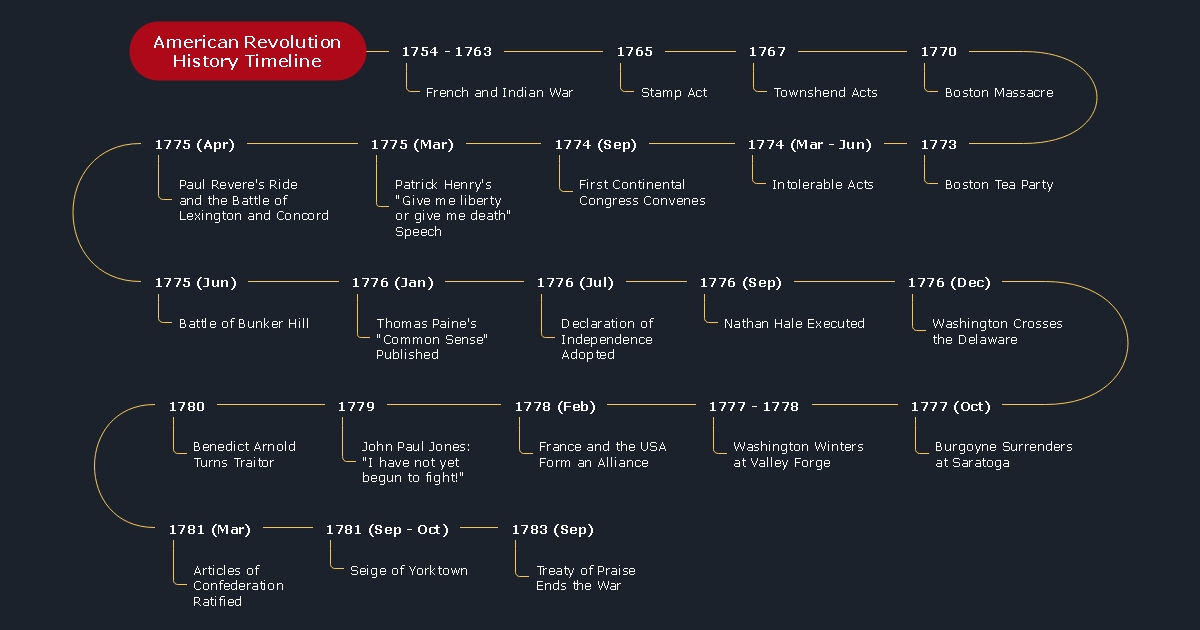
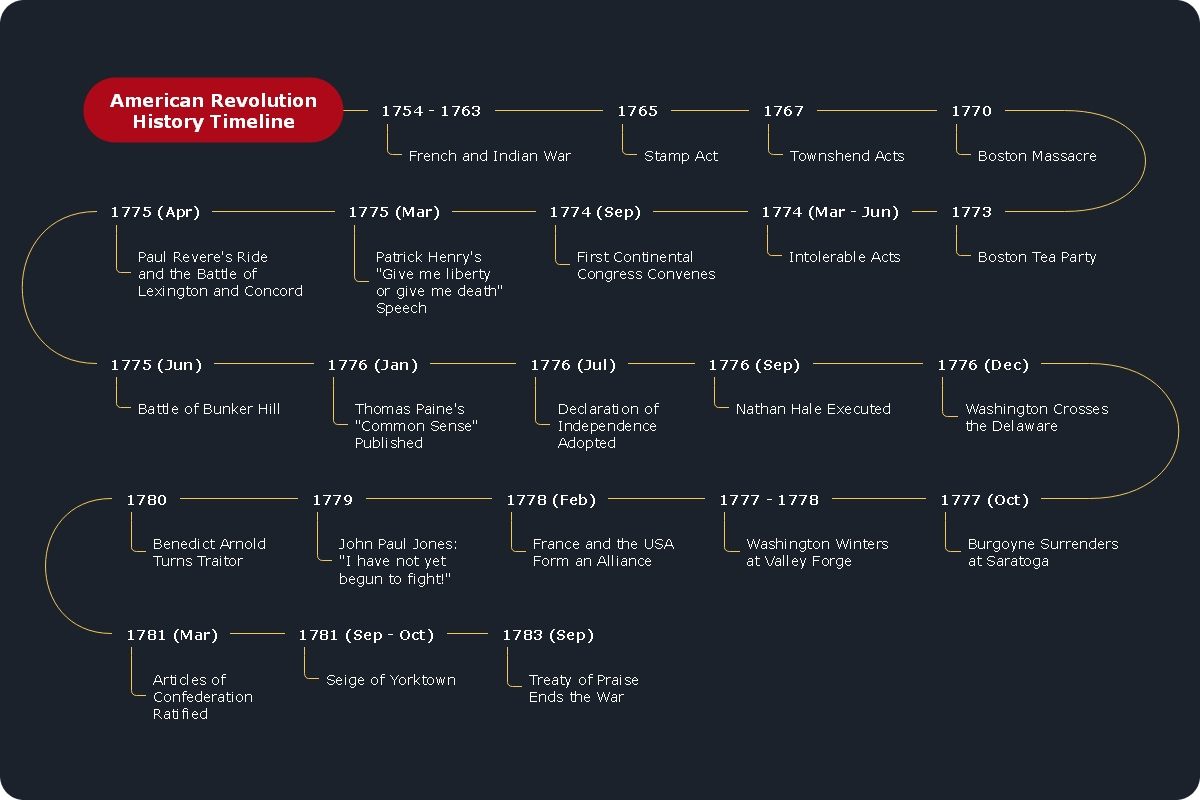
A history timeline template can be used to represent a particular chain of events in a certain phase. You can highlight specific events in a horizontal view through a historical timeline to see the progress precisely. For instance, you can create the history timeline of World Wars, Viking history, or the history of any particular country.
If you want to check the completion progress of any event or project, you can use this template to highlight the milestones according to the date or time.
2. Project Timeline Template
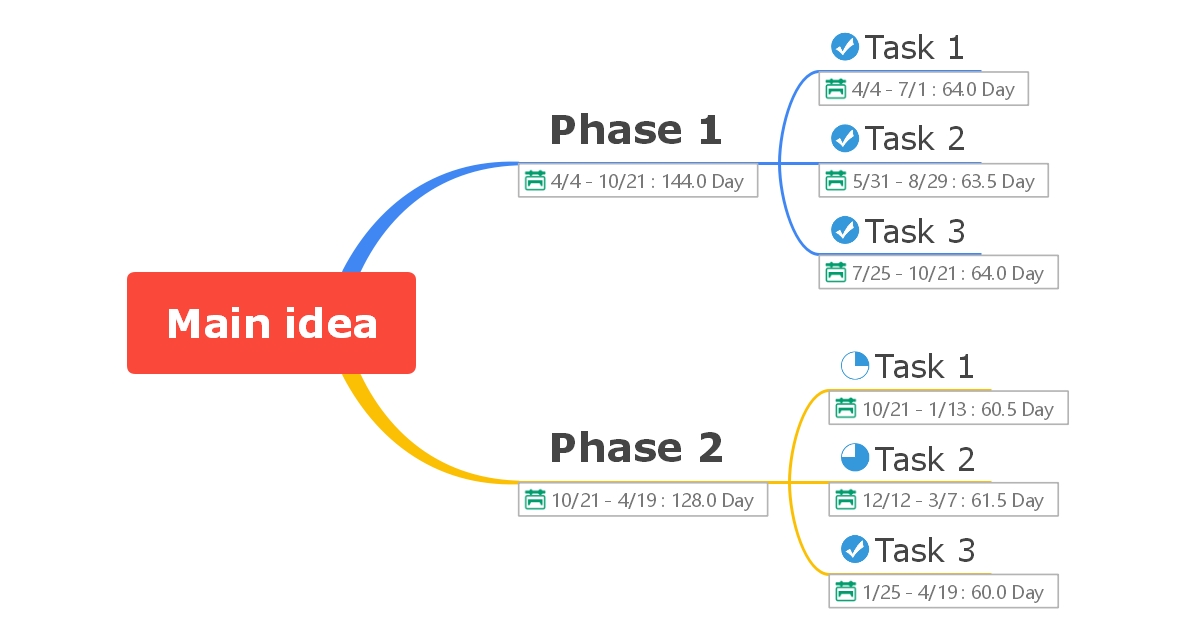
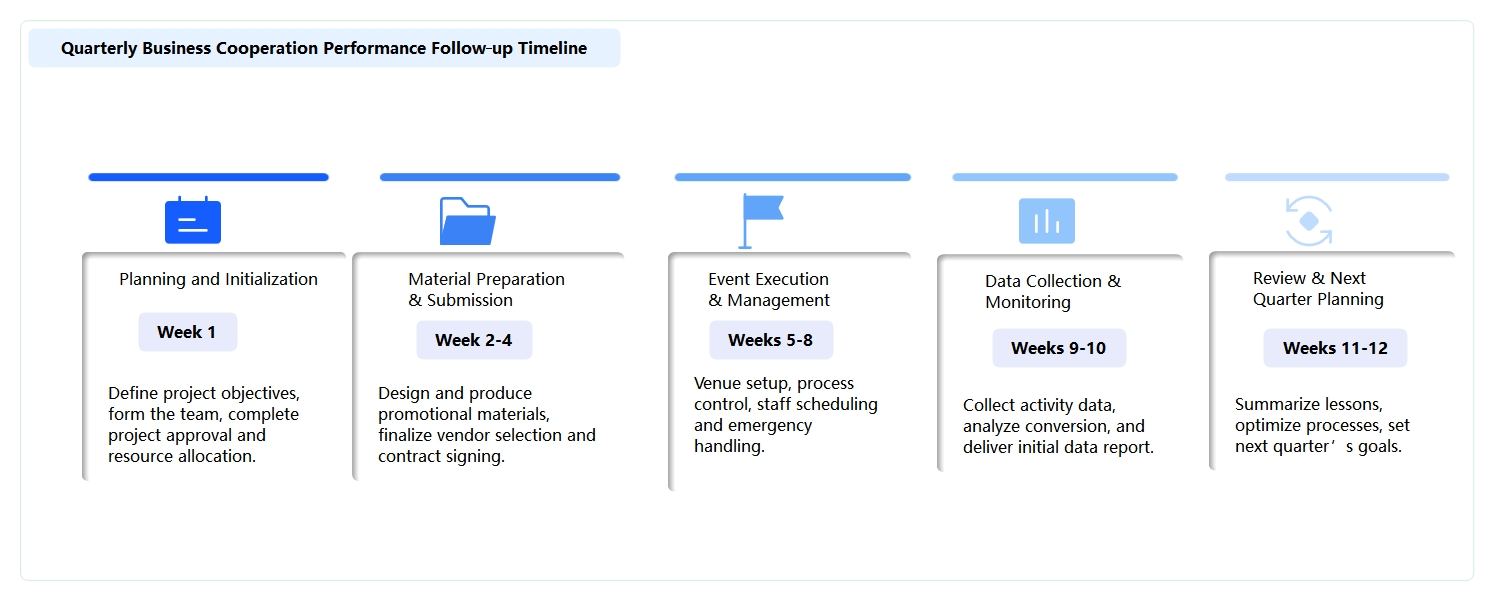
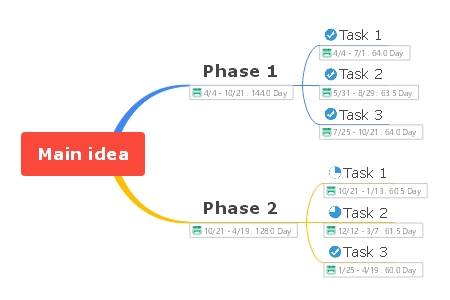
To handle complicated or massive projects, a project timeline is used by professionals for timely completion. This timeline template allows you to organize the tasks and ongoing activities visually. You can also assign tasks to your team members to check their progress on time. Moreover, you can create milestones on the project timeline to accomplish the essential tasks on time.
You can also enter the start and end date of the tasks on the project timeline to finish the prioritized tasks efficiently. Hence, it can help you tackle bigger or more complex projects in a sophisticated manner.
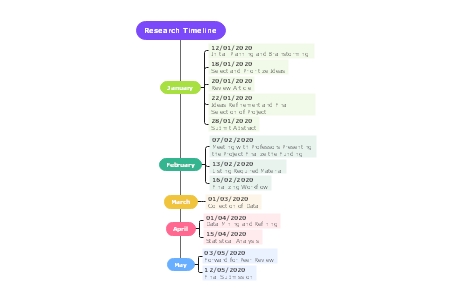
3. Research Timeline Template
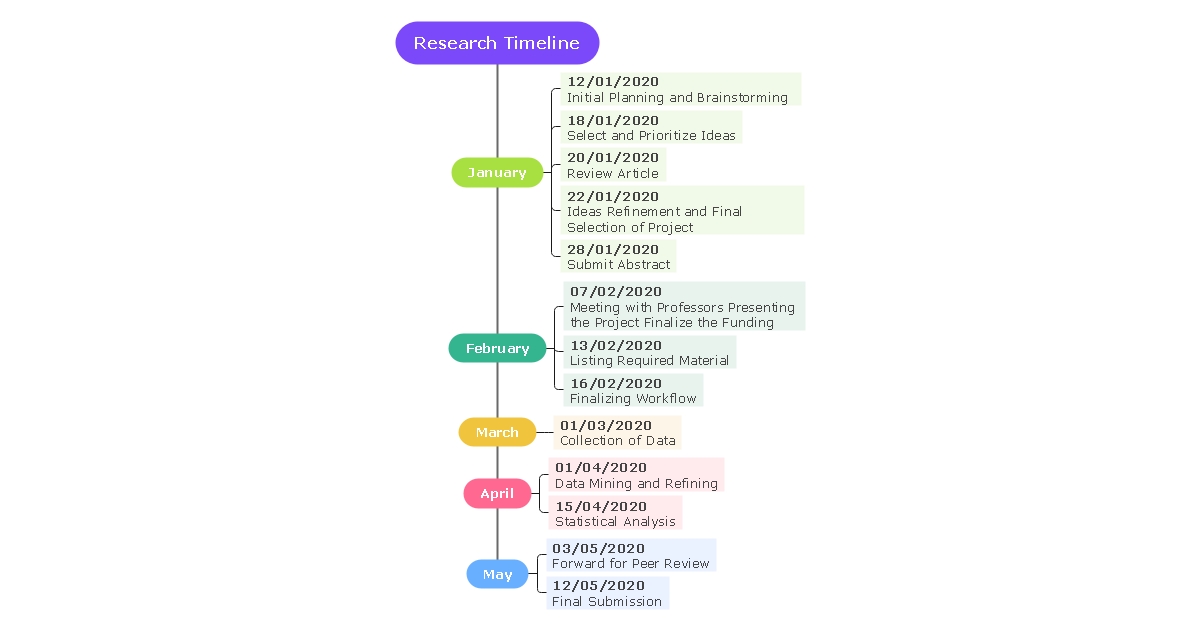
A research timeline is similar to a project timeline in visualizing the detailed progress of the project. However, in the research timeline template, you can highlight the qualitative aspect of your project by representing the research findings or data.
By looking at the research timeline of your project, people would be able to comprehend the details of your project in terms of research data, findings, and approach.
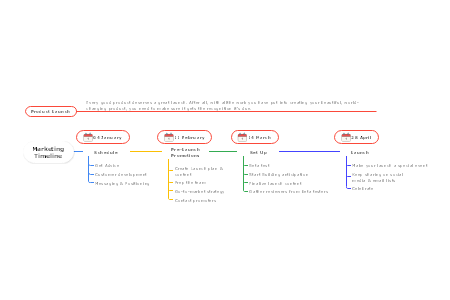
4. Marketing Plan Timeline Template
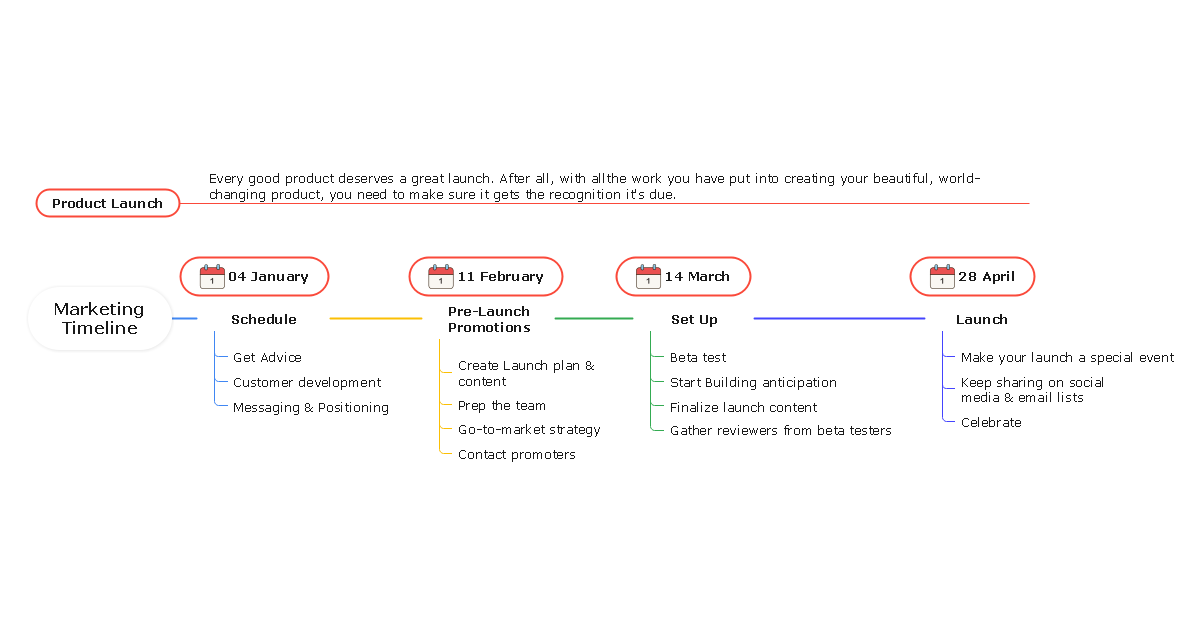
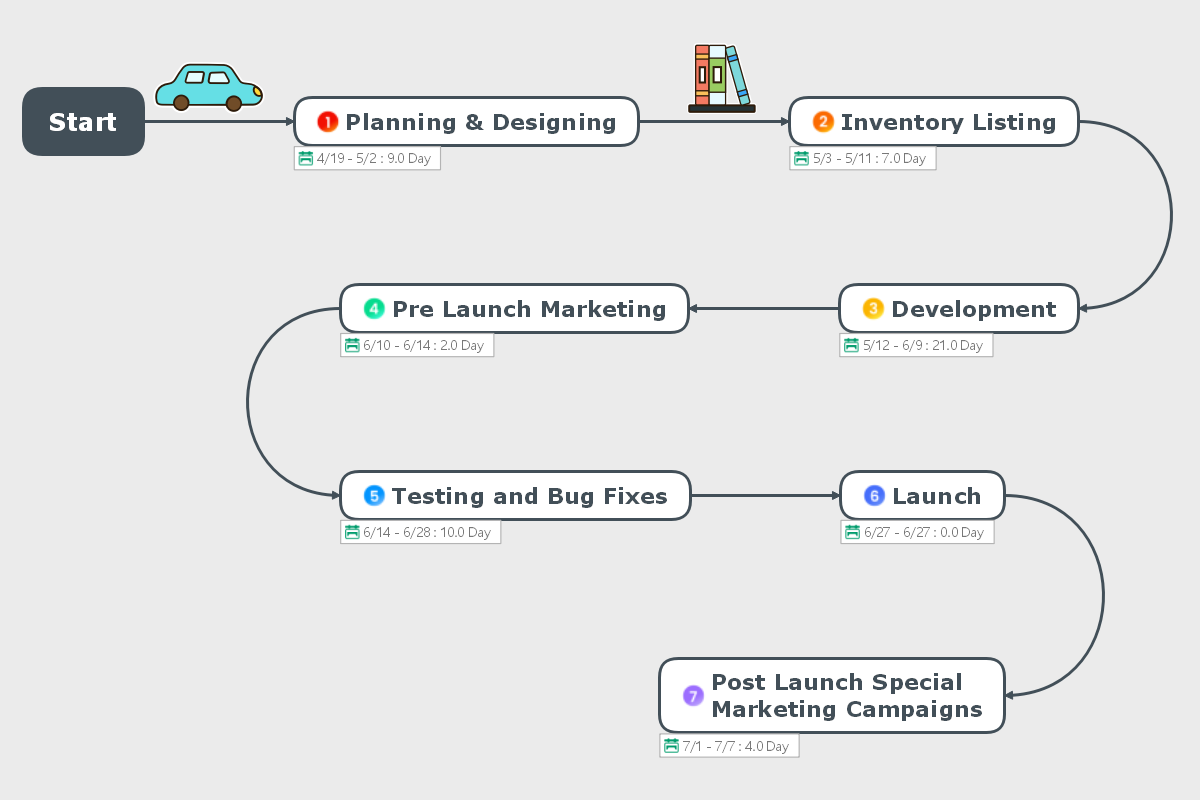
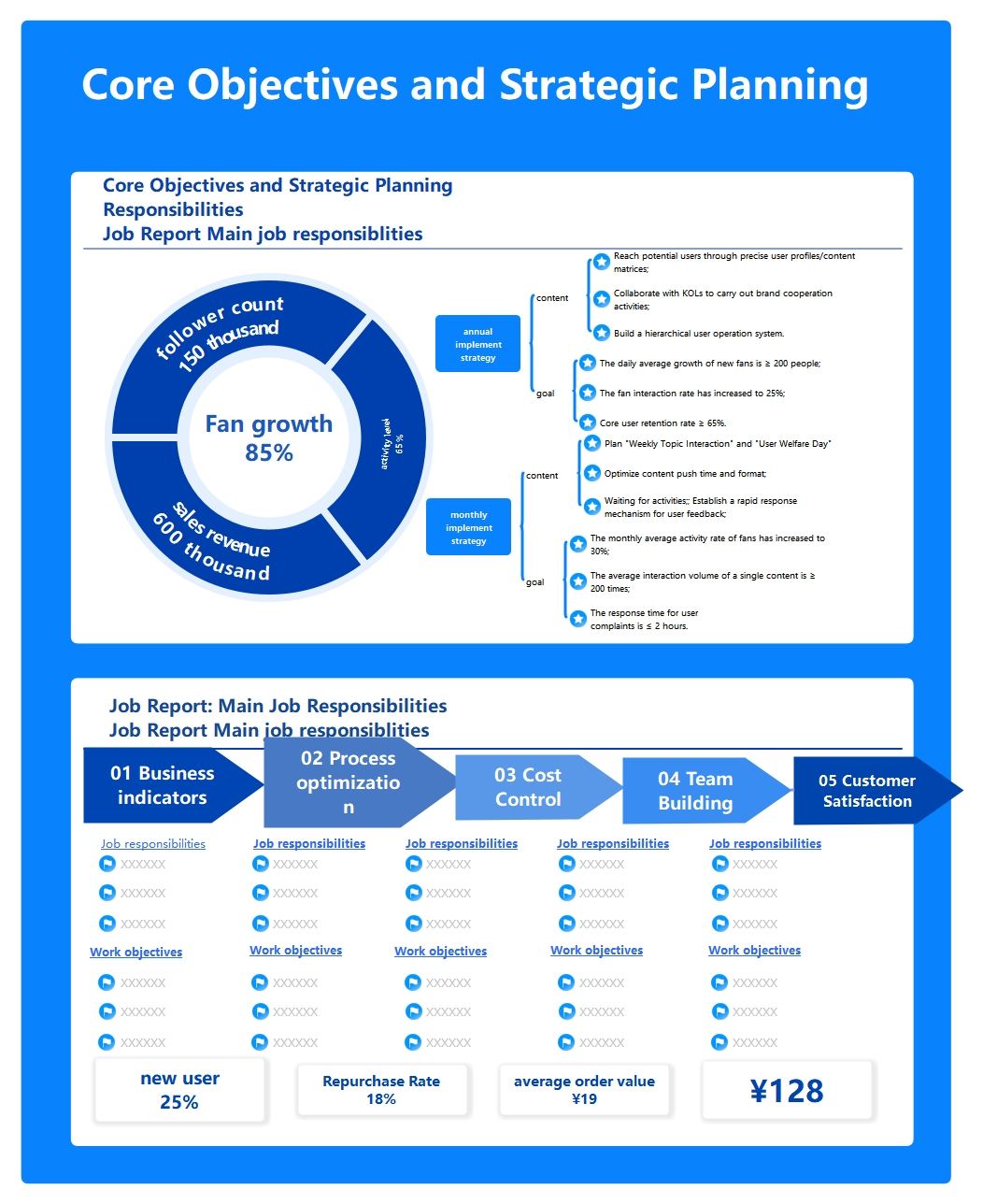
Without impactful marketing, you cannot expect the success of your project. To launch your brand or project effectively, you must make a marketing plan or strategy. For this, people use a marketing plan timeline template to decide the schedule, pre-launch promotions, and other marketing strategies. This timeline template will help you to launch your brand in an impactful and efficient way.
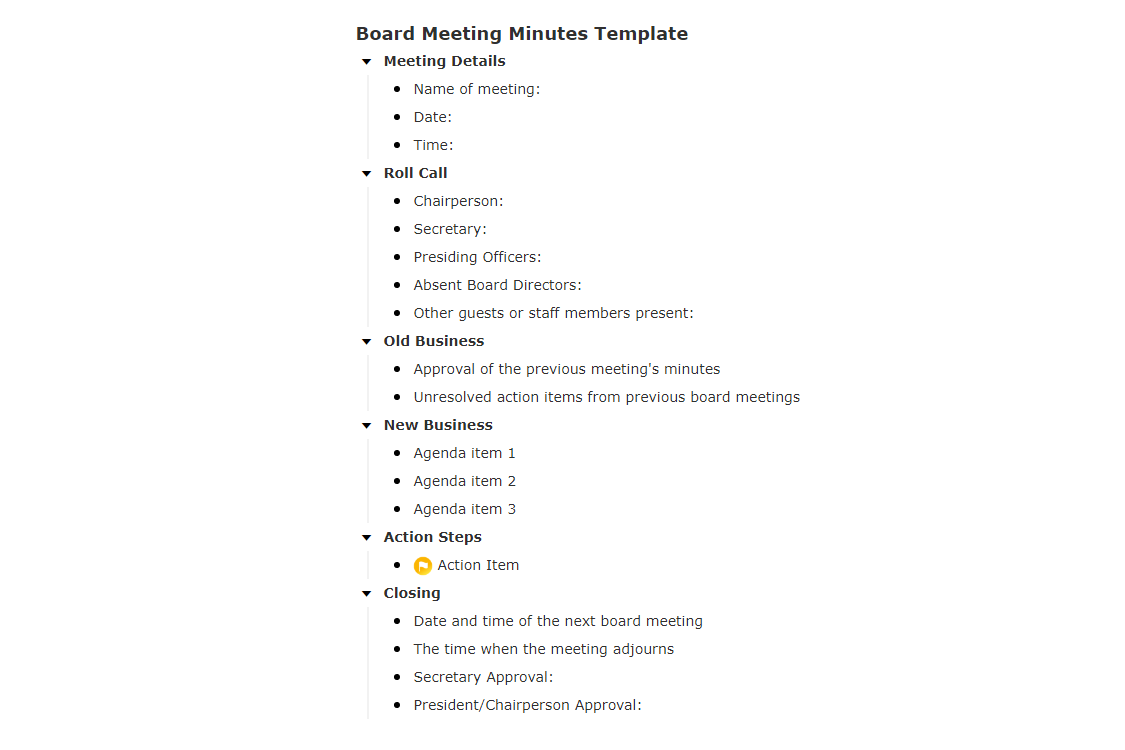
5. Meeting Minutes Timeline Template
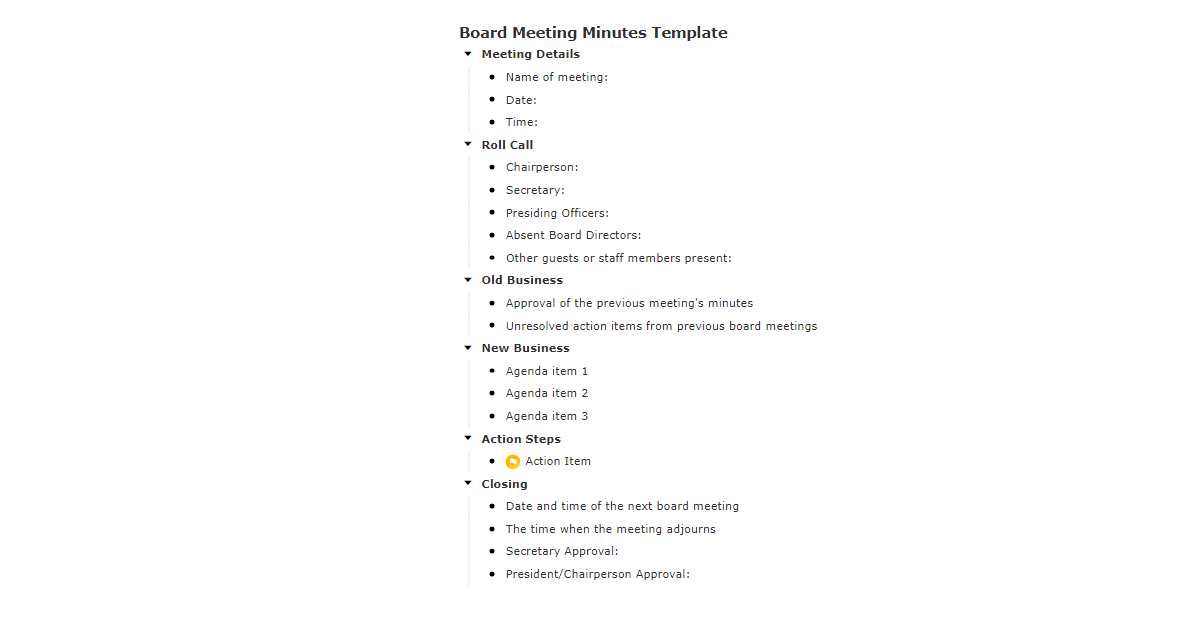
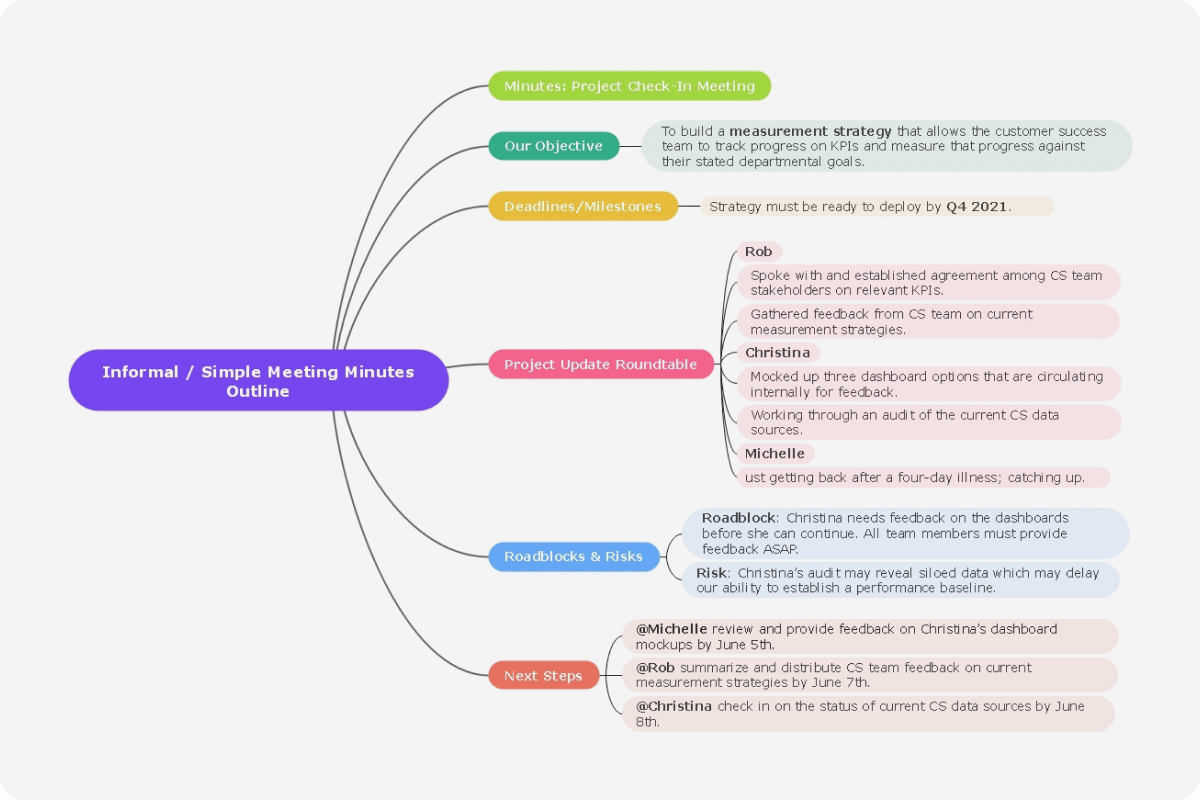
If you plan an important or prominent board meeting, you can use the meeting minutes timeline template. In this template, you can plan your meeting by minutes precisely and professionally by deciding the order of the roll call, action steps, agendas, arguments, and essential briefing. You can also jot down the important points you must address in the meeting. Moreover, you can plan the closing of the meeting so that you don't miss any crucial points in the end.
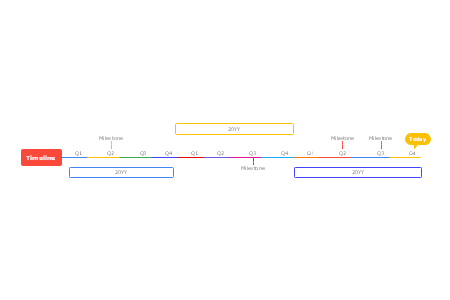
6. Milestone Timeline Template
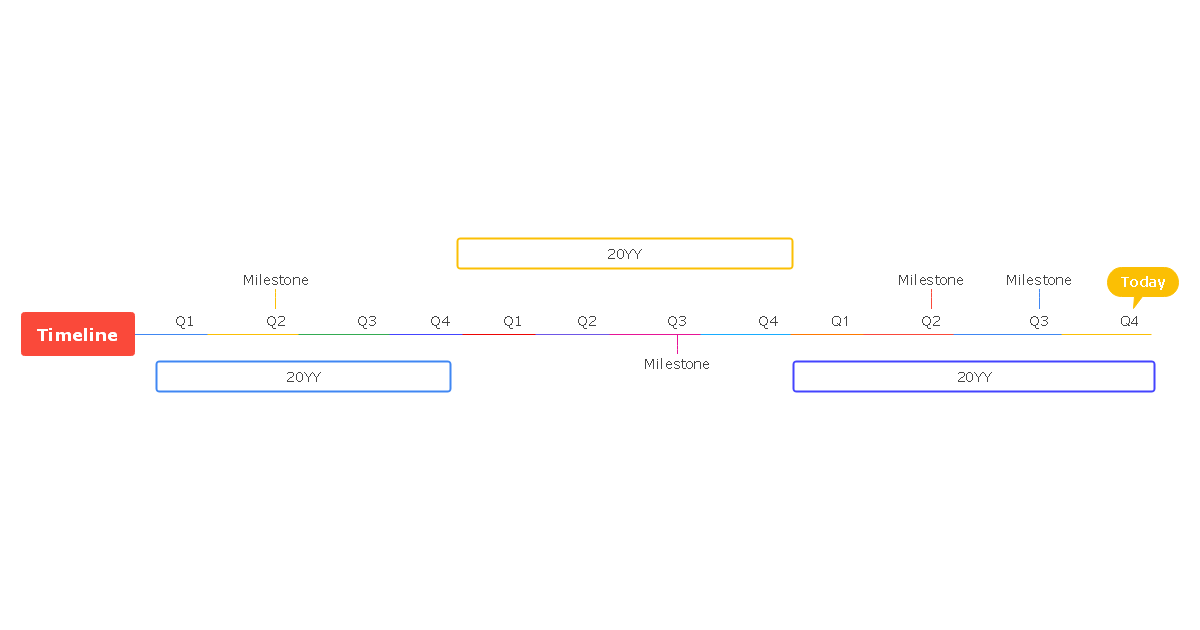
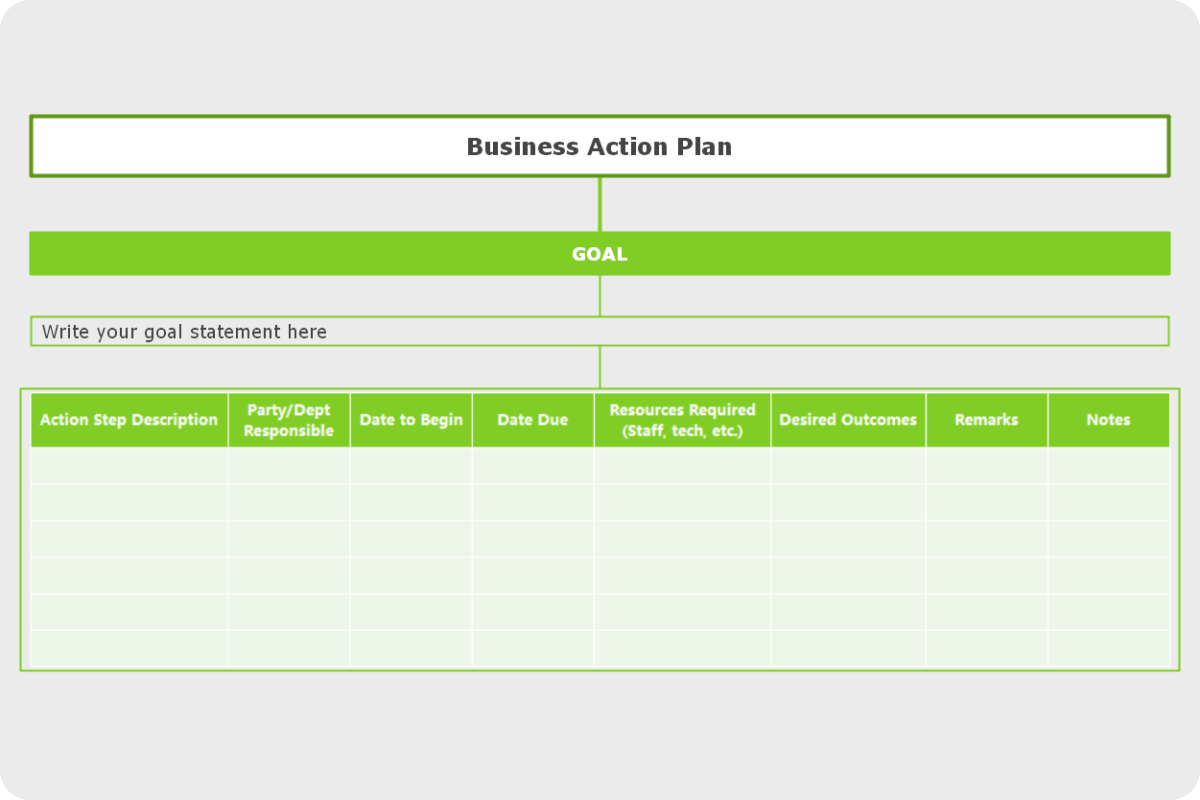
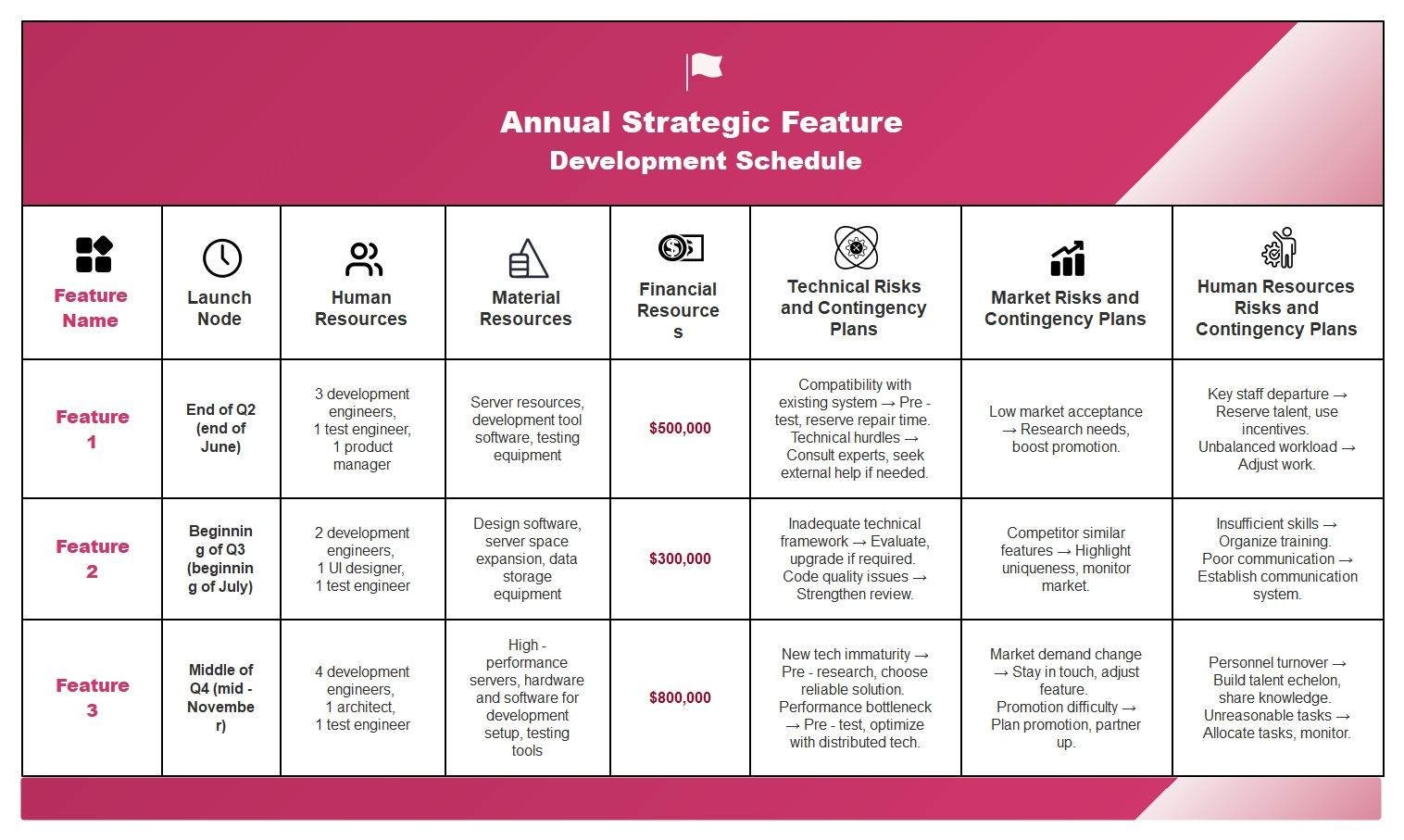
Milestone timeline template helps you to divide the project according to essential phases. By doing so, you can simplify your project by highlighting the key events, accomplished tasks, and targets in an illustrated way. This is an excellent way to brief about the major phases of your project to your investors, sponsors, or stakeholders.
#2 What is Timeline
A timeline is used to describe the list of events that happened over time in chronological order. People create and use timelines for event planning and research studies to complete a project on time. Students can take help from the timeline to understand the historical happenings in a structured way. There are multiple timeline templates that can be used according to the requirements of your project and purposes.
#3 Types of Timelines
You can find numerous types of the timeline that are distinguished according to the visual representation. To learn about the types of timelines, you can give a quick read to the following list:
- Gantt Chart Timeline: The Gantt chart timeline represents the project in a spreadsheet manner using the X-axis and Y-axis. This timeline estimates the workflow and ongoing progress of the project. With the X-axis, you can check the time spent on each task, whereas the Y-axis represents the task's details.
- Vertical Timeline: A vertical timeline gives the visual representation from top to bottom. With this timeline, you can check the growth of your project within the time in chronological order. For instance, you can check the number of funds raised for a particular organization over a while.
- Horizontal Timeline: A horizontal timeline is commonly used to indicate the occurrence of events from left to right. You can represent the information, collected data, and respective time or data in this timeline. For instance, you can use this timeline to trace the evolution of specie in a more straightforward manner.
- Roadmap Timeline: This type of timeline is usually used to represent the call to action in an organized manner. You can plan your goals and vision of your company or brand through this timeline. It will help you to be future-oriented in terms of achieving your goals.
#4 Components of a Timeline
The timeline consists of multiple components that help the user to simplify their projects. Following are the components that provide a framework for a timeline:
- Images: These are the visuals that help the user to understand the purpose and context of your project.
- Events: Events describe the details of your project in a quick manner. It tells the highlights of the project in a few words.
- Titles: It's the heading of a timeline that should be short yet engaging in grasping the viewer's attention.
- Dates: It tells the exact time of a specified event that helps the people to comprehend the significance of your project.
#5 How to Make a Timeline
To create a timeline according to the purpose of your project, EdrawMind is the best tool. Through this software, you can use multiple timeline templates to start describing your project. While creating a timeline in its friendly user interface, you can easily add effects, themes, and other elements to add vibrance.
Step 1: Select Your Timeline Template
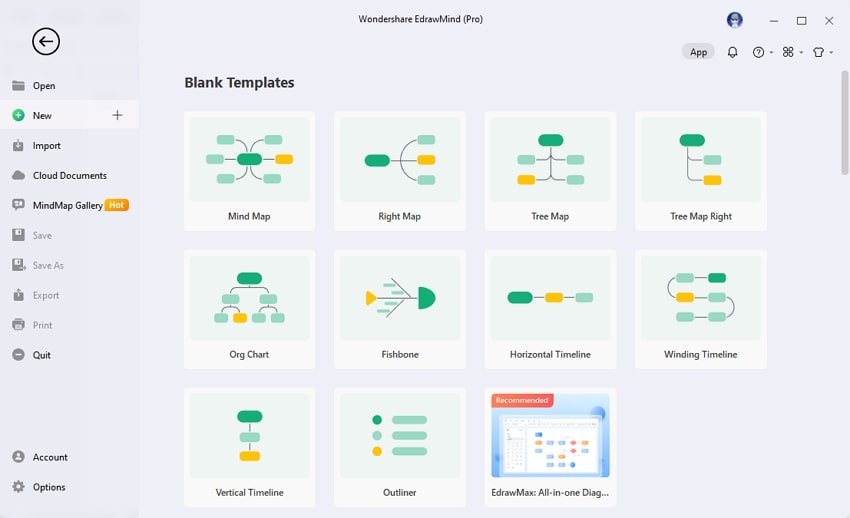
Download EdrawMind on your computer and launch it smoothly. You can also use EdrawMind Online for creating timeline templates. On the new page, you can select from the multiple timeline templates. Click on your preferred template from the given options.
Download EdrawMind on your computer and launch it smoothly. You can also use EdrawMind Online for creating timeline templates. On the new page, you can select from the multiple timeline templates. Click on your preferred template from the given options.
Step 2: Add Main Topics
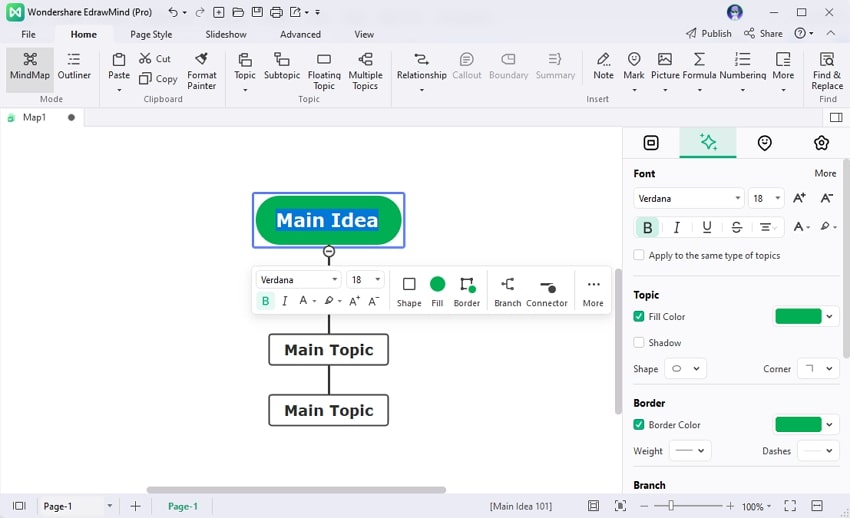
On EdrawMind's editor page, you can see the drawn line and boxes of your selected timeline template. To add the main topic, press the "Enter" button. By clicking on the Main Topic, you can add your content by selecting the font and size.
On EdrawMind's editor page, you can see the drawn line and boxes of your selected timeline template. To add the main topic, press the "Enter" button. By clicking on the Main Topic, you can add your content by selecting the font and size.
Step 3: Change the Timeline View Settings
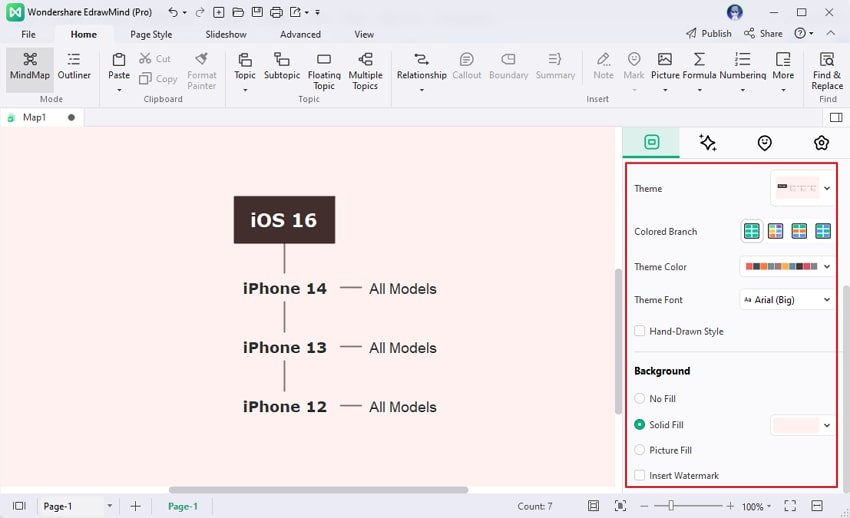
To add a Main Topic behind any Main Topic, you can press the "Shift" and "Enter" keys. Moreover, you can add a sub-topic by pressing the "Tab" key on your keyboard. From the settings, you can also change the background, layout, and arrow shapes easily. Once done with creating the timeline, go to the "File" button and click on the "Save" option.
To add a Main Topic behind any Main Topic, you can press the "Shift" and "Enter" keys. Moreover, you can add a sub-topic by pressing the "Tab" key on your keyboard. From the settings, you can also change the background, layout, and arrow shapes easily. Once done with creating the timeline, go to the "File" button and click on the "Save" option.
#6 How to Make a Timeline on PowerPoint
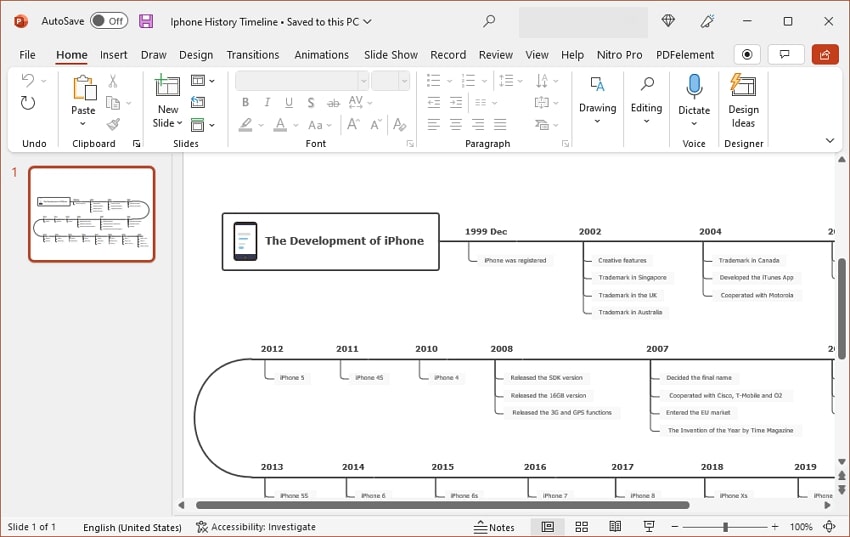
EdrawMind gives you an advanced option through which you can export your timeline directly to the PowerPoint. You don't have to begin from the scratch instead, you can edit the exported timeline on PowerPoint flawlessly. Through this facility, you can add modifications to your timeline on PowerPoint without restrictions.
#7 Conclusion
EdrawMind is a complete software through which you can create unique and effective timelines for your projects, event planning, and personal use. To simplify your complex projects, this software can help you in various aspects. To learn how to use this tool effectively, you can watch this brief video tutorial for additional help.