About this Cisco IOS interface template
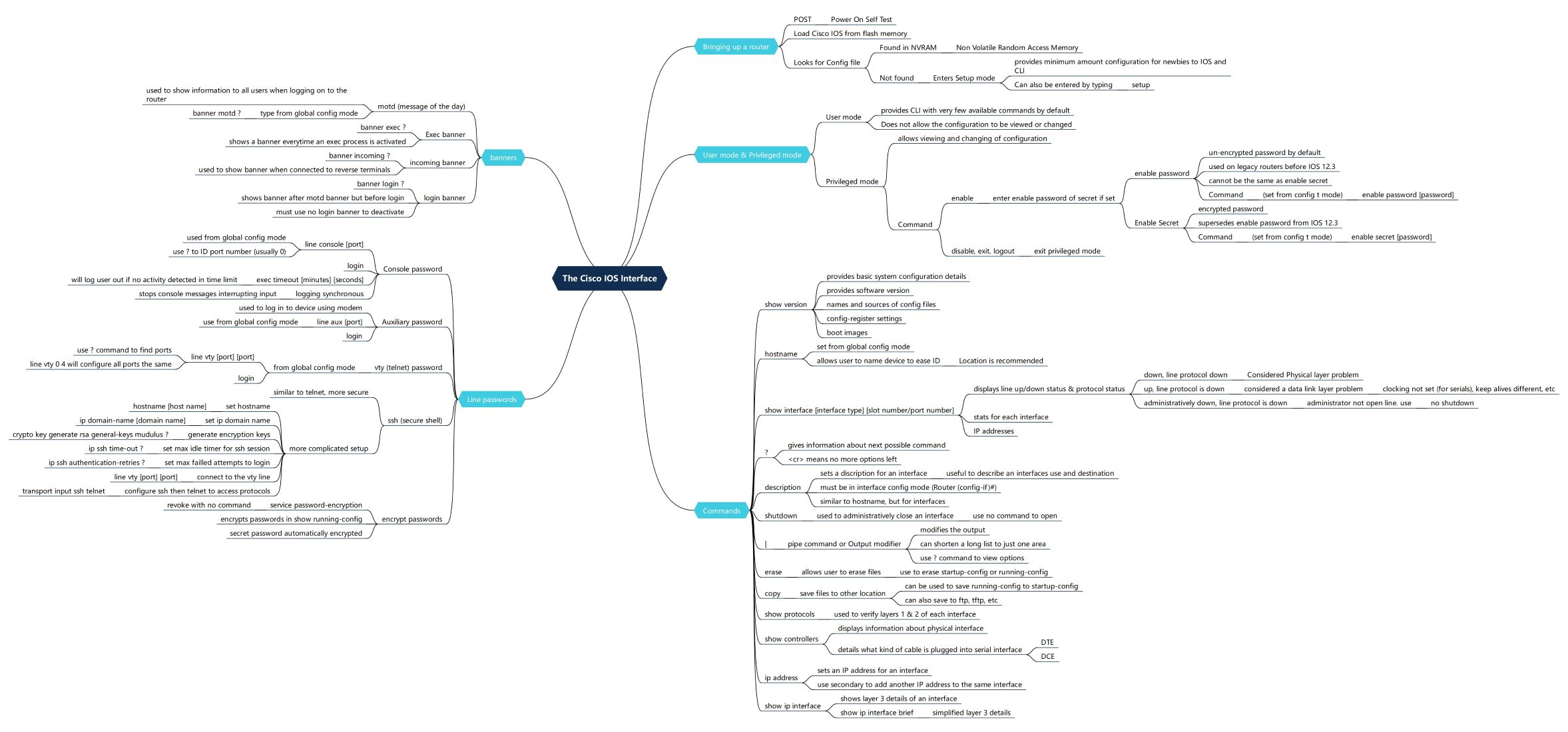
This template provides a comprehensive visual guide to the Cisco IOS command-line interface. It outlines essential startup processes, operational modes, security configurations, and common commands required for effective network management and hardware optimization for IT professionals.
Bringing up a router
The router initialization process involves hardware checks and software loading to reach an operational state. It ensures the system is healthy and finds the correct configuration files needed to start essential network services immediately.
- Power On Self Test (POST)
- Loading Cisco IOS from flash memory
- Searching for the configuration file in NVRAM
- Entering Setup mode if no configuration is found
User mode & Privileged mode
Cisco IOS utilizes different access levels to secure device management. User mode offers limited monitoring capabilities, while Privileged mode allows full configuration access, often protected by encrypted passwords to prevent any unauthorized administrative changes.
- User mode for basic CLI monitoring
- Privileged mode for viewing and changing configurations
- Enable password (un-encrypted or legacy)
- Enable Secret (strongly encrypted and preferred)
Essential Commands
Command-line instructions are the primary way to interact with Cisco devices. These tools allow administrators to check hardware versions, set hostnames, manage interface states, and verify connectivity through various status and protocol display commands.
- Show version and hostname configuration
- Show interface for status and protocol statistics
- Description and shutdown for port management
- Copy and erase for configuration file handling
Line Passwords and Security
Securing access to the device through physical and virtual ports is a critical security step. This section covers various login methods, including console, auxiliary, and remote access protocols like Telnet and Secure Shell (SSH).
- Console password for local access
- VTY (Telnet) and SSH for remote management
- Service password-encryption for clear-text protection
- SSH setup with RSA keys and domain names
System Banners
Banners provide important legal notifications and system messages to users during the login process. They are used to display warnings, message-of-the-day updates, or specific instructions when a connection is established with the router.
- MOTD (Message of the day)
- Exec banner for process activation
- Incoming and login banners for connection feedback
- Deactivation using the 'no login banner' command
FAQs about this Template
-
How do I recover a Cisco router if the configuration file is missing?
When a Cisco router cannot find a valid configuration file in the NVRAM during the boot process, it automatically enters Setup mode. This mode provides a basic, guided configuration sequence for beginners. Alternatively, you can manually enter this mode by typing the 'setup' command in the CLI to reconfigure essential network settings and restore device functionality quickly.
-
What is the difference between enable password and enable secret?
The 'enable password' command uses an un-encrypted or weakly encrypted format, making it vulnerable to security breaches. In contrast, the 'enable secret' command uses strong encryption and automatically supersedes the standard enable password. Using 'enable secret' is a best practice for securing Privileged mode access, as it protects sensitive credentials from being easily read in configuration files.
-
How can I verify the status of a specific interface in Cisco IOS?
To check an interface's status, use the 'show interface' command followed by the specific port ID. This command displays physical layer status, data link protocol status, and traffic statistics. If you need a faster summary, 'show ip interface brief' provides a concise list of all interfaces, their IP addresses, and whether the status is currently up or down.